Creating a UDE Environment with PowerShell
Creating a UDE Environment with PowerShell
In the previous article of the series, we covered how to create a developer-enabled UDE environment by using the Power Platform Admin Center interface.
Proceeding through the interface is especially useful in the first trials. Seeing which option is on which screen, how Dynamics 365 apps are enabled, where Platform Tools and Provisioning App are installed from, and where the Developer Tools option appears makes the process easier to understand.
However, in real life, especially for partners, ISVs, or teams managing multiple environments, doing these operations from the interface every time is not a very sustainable method. The environment creation process needs to be standard, repeatable, and documentable.
In this article, we will look at how we can do the same work with PowerShell.
Why PowerShell?
The most important advantage of creating a UDE environment with PowerShell is that it standardizes the process.
When creating an environment from the interface, many selections are made manually. Settings such as template selection, region, demo data, developer tools, language, and currency are determined by the user each time. Naturally, this increases the possibility of errors.
On the PowerShell side, we include these decisions in the script. This way, the same script can be reused for different tenants, projects, or trial environments with small changes.
For me, the advantages of the PowerShell approach are:
- The environment creation process becomes documented.
- It becomes clear with which settings the environment was created.
- The possibility of manual errors decreases.
- The same structure can be reused for different projects.
- A standard environment creation approach is formed within the team.
- It becomes easier to connect it to DevOps and automation processes.
Especially if you will create multiple UDE environments or if you want to make this a standard practice within the team, you definitely need to learn the PowerShell side.
Before you start
To create an environment with PowerShell, first the user who will perform the operation must have the required permissions.
Usually, one of the following roles is required:
- Power Platform Administrator
- Dynamics 365 Administrator
- Global Administrator
In addition, there must be an appropriate Finance & Operations license and sufficient capacity on the tenant.
The basic capacity areas that should be checked are:
- Dataverse database capacity
- Operations database capacity
Important note: We will not create a Power Platform Developer Environment for UDE. UDE is a Sandbox environment with Finance & Operations developer tools enabled.
Installing the PowerShell module
First, we open PowerShell as administrator.
We install the required module for Power Platform admin operations:
Install-Module -Name Microsoft.PowerApps.Administration.PowerShellIf this module was installed before, we can use the following command to update it:
Update-Module -Name Microsoft.PowerApps.Administration.PowerShellIf needed, we can import the module manually:
Import-Module Microsoft.PowerApps.Administration.PowerShellDuring the first installation, questions related to the NuGet provider or repository trust may appear. These are standard confirmations that we frequently encounter during PowerShell module installations.
Signing in with the Power Platform account
To connect to Power Platform, we run the following command:
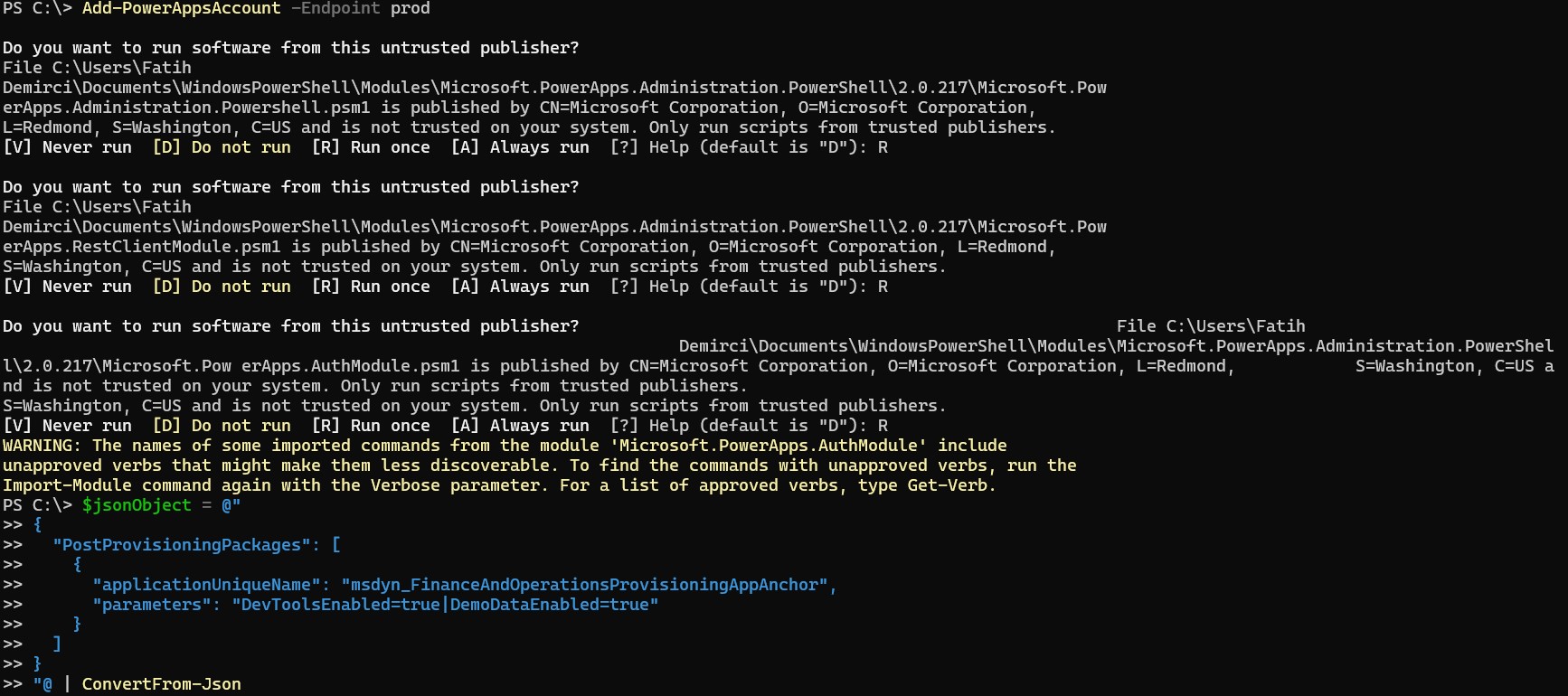
Add-PowerAppsAccount -Endpoint prodThis command opens an interactive login screen. Here, you must sign in with a user who has admin permissions.
After a successful sign-in, we can run admin commands through the same PowerShell session.
Checking available locations
When creating the environment, we will use the LocationName parameter. To see the valid locations for this parameter, we can run the following command:
Get-AdminPowerAppEnvironmentLocationsThis command lists the available locations for the tenant.
As an example, you may see values like the following:
- Europe
- UnitedStates
- Canada
- Asia
- Australia
The list may change depending on tenant, license, and region support. It is important to select a region that supports Finance & Operations applications.
Determining the template information
When creating the Finance & Operations environment with PowerShell, we use a template.
Commonly used template examples are:
D365_FinOps_Finance
D365_FinOps_SCM
D365_FinOps_ProjOps
D365_FinOps_Commerce
For the first UDE trial, the Finance template is usually sufficient:
D365_FinOps_FinanceIf you will create an SCM-focused development environment, the following template can be preferred:
D365_FinOps_SCMTemplate selection is important here. Because it determines with which Finance & Operations application scope the environment will be created.
Developer Tools and Demo Data parameters
For the UDE environment to be developer-enabled, we need to enable the developer tools feature during provisioning.
The equivalent of this on the PowerShell side is:
DevToolsEnabled=trueIf we want demo data to be installed, we also add the following parameter:
DemoDataEnabled=trueWe will provide these parameters inside TemplateMetadata.
The sample JSON object can be prepared as follows:
$jsonObject = @"
{
  "PostProvisioningPackages": [
    {
      "applicationUniqueName": "msdyn_FinanceAndOperationsProvisioningAppAnchor",
      "parameters": "DevToolsEnabled=true|DemoDataEnabled=true"
    }
  ]
}
"@ | ConvertFrom-Json
The most critical point here is the DevToolsEnabled=true parameter. If this parameter is not provided, the environment will not be created as a developer-enabled UDE.
If you do not want demo data, you can change the parameter as follows:
$jsonObject = @"
{
  "PostProvisioningPackages": [
    {
      "applicationUniqueName": "msdyn_FinanceAndOperationsProvisioningAppAnchor",
      "parameters": "DevToolsEnabled=true|DemoDataEnabled=false"
    }
  ]
}
"@ | ConvertFrom-Json
My approach is usually as follows:
In training, demo, article, or first trial environments, installing demo data is useful. With Contoso data, it is easier to open forms, test processes, and create examples.
However, in real project development environments, the demo data decision should be made according to the project strategy. Having demo data in every environment may not be the right choice.
Creating the UDE environment
Now we can create the environment.
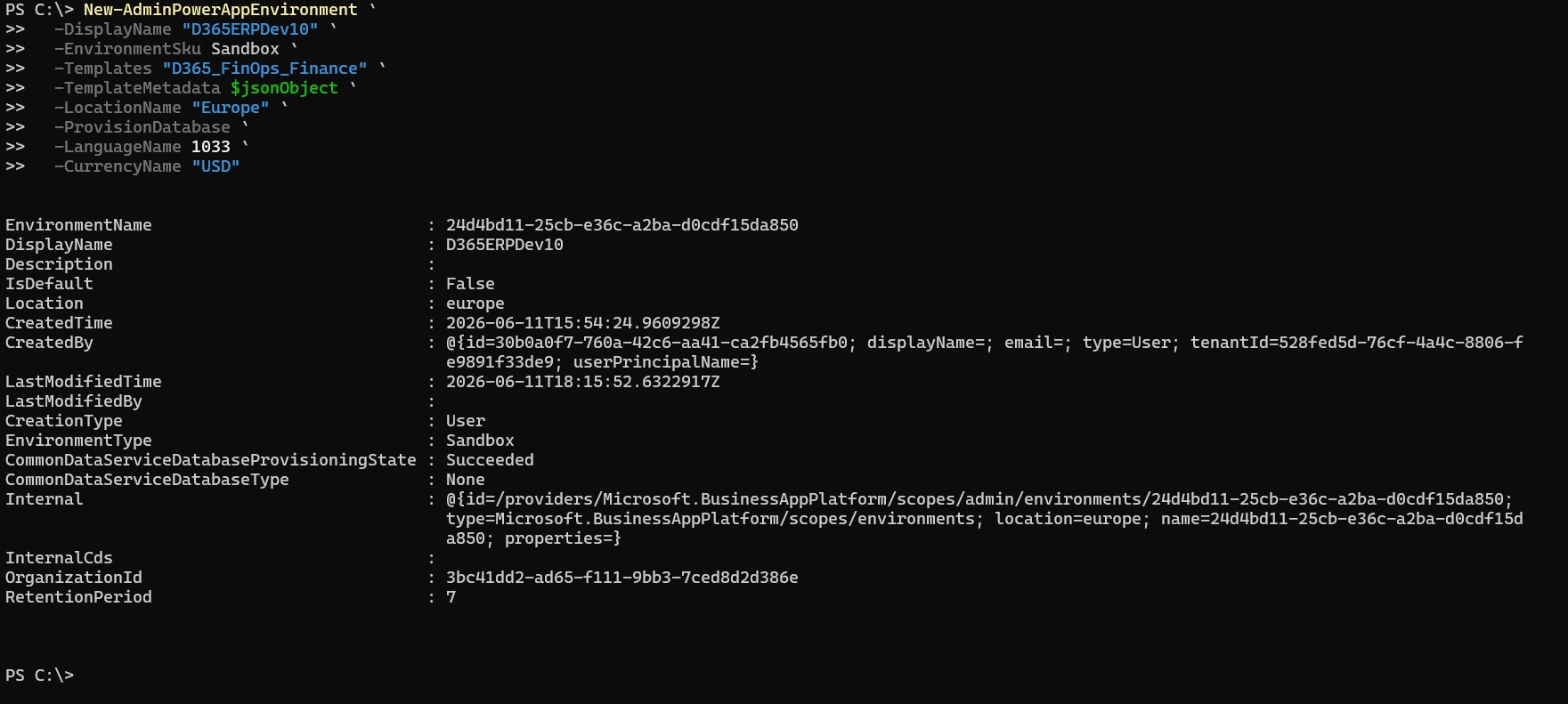
The following sample command creates a developer-enabled UDE sandbox environment with the Finance template and demo data:
New-AdminPowerAppEnvironment `
  -DisplayName "dmrude01" `
  -EnvironmentSku Sandbox `
  -Templates "D365_FinOps_Finance" `
  -TemplateMetadata $jsonObject `
  -LocationName "Europe" `
  -ProvisionDatabase `
  -LanguageName 1033 `
  -CurrencyName "USD"
The main parameters used in this command are:
| Parameter | Description |
|---|---|
| DisplayName | The environment name. It should be short and meaningful. |
| EnvironmentSku | Specifies the environment type. Sandbox is used for UDE. |
| Templates | Specifies which Finance & Operations template will be used. |
| TemplateMetadata | Carries provisioning parameters such as developer tools and demo data. |
| LocationName | Specifies the location where the environment will be created. |
| ProvisionDatabase | Specifies that a Dataverse database will be created. |
| LanguageName | Specifies the environment language. 1033 is used for English. |
| CurrencyName | Specifies the default currency. |
PowerShell note: In the example, I wrote the command line by line for readability and used the backtick as the line continuation character. The backtick character must be at the end of the line and there must be no space after it. Otherwise, the PowerShell command may not work as expected.
Checking whether the environment has been created
After the command runs, we can check the environment list:
Get-AdminPowerAppEnvironmentFor a more readable output, using it as follows is more practical:
Get-AdminPowerAppEnvironment |
Select-Object DisplayName, EnvironmentName, Location, EnvironmentSku, CreatedTime
To filter a specific environment by name:
Get-AdminPowerAppEnvironment |
Where-Object { $_.DisplayName -eq "dmrude01" }
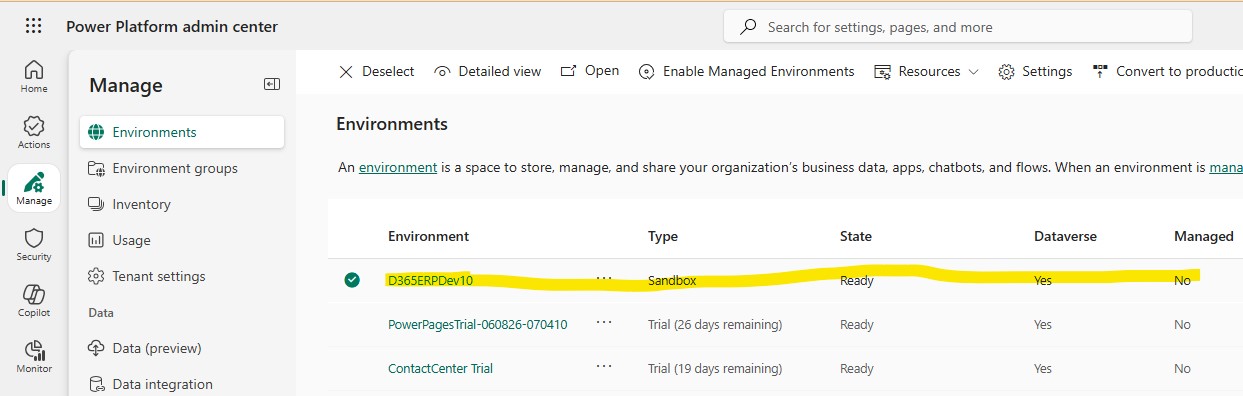
At this stage, the environment may appear in the list, but the provisioning process may still continue in the background. Therefore, it is also useful to check through Power Platform Admin Center.
Checking through Power Platform Admin Center
After creating the environment with PowerShell, it is still necessary to check through Power Platform Admin Center.
Points to check:
- Is the environment visible in the environment list?
- Is the environment type Sandbox?
- Has the Dataverse URL been created?
- Has the Finance and Operations URL been created?
- Have the related applications been installed under Dynamics 365 apps?
- Is the Provisioning App status Installed?
Even though we created the environment with PowerShell, seeing the result through PPAC during the first trials is useful for the process to settle.
Checking Environment URL and Finance and Operations URL
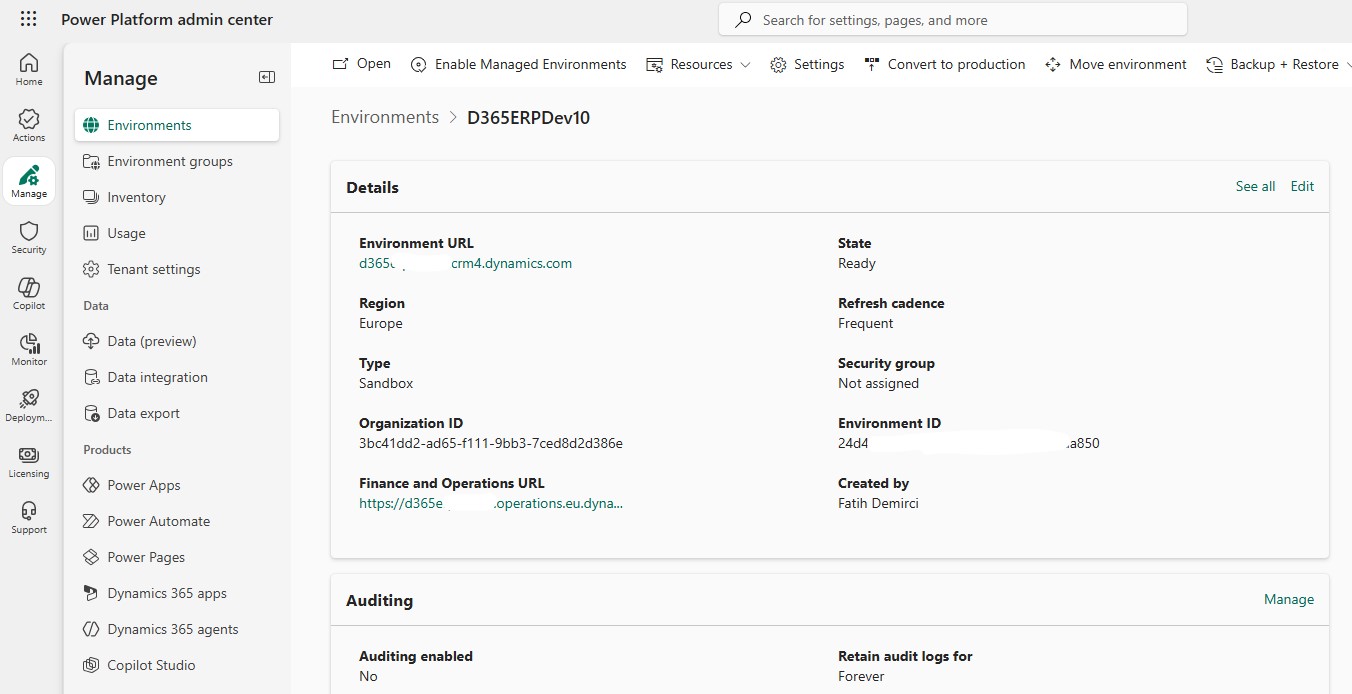
After the setup is completed, we see two different URLs on the environment details page:
- Environment URL
- Finance and Operations URL
This distinction is important on the UDE side.
Environment URL is the Power Platform / Dataverse environment URL. This is usually the URL that will be used when connecting from Visual Studio.
Finance and Operations URL is the URL used by users to open the Dynamics 365 Finance & Operations application.
In initial setups, these two URLs are often confused. Therefore, it is useful to check both of them after the environment is created.
Full version of the script
Below is a basic script example.
This script creates a developer-enabled UDE sandbox environment with the Finance template and demo data.
# Install module if needed
Install-Module -Name Microsoft.PowerApps.Administration.PowerShell -Scope CurrentUser -Force

# Import module
Import-Module Microsoft.PowerApps.Administration.PowerShell

# Login to Power Platform
Add-PowerAppsAccount -Endpoint prod

# Template metadata for UDE
$jsonObject = @"
{
  "PostProvisioningPackages": [
    {
      "applicationUniqueName": "msdyn_FinanceAndOperationsProvisioningAppAnchor",
      "parameters": "DevToolsEnabled=true|DemoDataEnabled=true"
    }
  ]
}
"@ | ConvertFrom-Json

# Create UDE environment
New-AdminPowerAppEnvironment `
  -DisplayName "dmrude01" `
  -EnvironmentSku Sandbox `
  -Templates "D365_FinOps_Finance" `
  -TemplateMetadata $jsonObject `
  -LocationName "Europe" `
  -ProvisionDatabase `
  -LanguageName 1033 `
  -CurrencyName "USD"

# Check environments
Get-AdminPowerAppEnvironment |
Select-Object DisplayName, EnvironmentName, Location, EnvironmentSku, CreatedTime
Do not run this script without modifying it according to your own environment. Especially check the following values:
- DisplayName
- Templates
- LocationName
- LanguageName
- CurrencyName
- DemoDataEnabled
Sample script without demo data
If you do not want demo data in a real project development environment, you can use the JSON object section as follows:
$jsonObject = @"
{
  "PostProvisioningPackages": [
    {
      "applicationUniqueName": "msdyn_FinanceAndOperationsProvisioningAppAnchor",
      "parameters": "DevToolsEnabled=true|DemoDataEnabled=false"
    }
  ]
}
"@ | ConvertFrom-Json
After that, the environment creation command can be run in the same way:
New-AdminPowerAppEnvironment `
  -DisplayName "dmrude02" `
  -EnvironmentSku Sandbox `
  -Templates "D365_FinOps_Finance" `
  -TemplateMetadata $jsonObject `
  -LocationName "Europe" `
  -ProvisionDatabase `
  -LanguageName 1033 `
  -CurrencyName "USD"
Example with SCM template
To create a Supply Chain Management-focused development environment, we can change the template value:
New-AdminPowerAppEnvironment `
  -DisplayName "dmrscmude01" `
  -EnvironmentSku Sandbox `
  -Templates "D365_FinOps_SCM" `
  -TemplateMetadata $jsonObject `
  -LocationName "Europe" `
  -ProvisionDatabase `
  -LanguageName 1033 `
  -CurrencyName "USD"
With this small change, we create the environment through the SCM template instead of Finance.
Deleting the created environment
If you created a trial environment and will no longer use it, you can regain capacity by deleting the environment.
First, let’s get the environment information:
Get-AdminPowerAppEnvironment |
Select-Object DisplayName, EnvironmentName
Then, the deletion operation can be performed with the related environment id:
Remove-AdminPowerAppEnvironment -EnvironmentName "environment-guid"Attention: You need to be very careful when using this command. Deletion is an operation that is difficult to reverse. It should definitely not be tried in Production or in an actively used environment.
I usually find it useful to show delete commands in articles, but extra care is needed when working on a real tenant. Especially if there are multiple trial environments with the same name, the correct environment id should be checked first.
Comparing the PPAC and PowerShell methods
Both methods have their own advantages.
| Topic | PPAC Interface | PowerShell |
|---|---|---|
| Ease of learning | Easier | A bit technical |
| Repeatability | Low | High |
| Error control | Manual | More standard with script |
| Team standard | Difficult | Easier |
| Documentation | Good visually | Good as script |
| Automation | Limited | Strong |
| Suitability for first trial | Very suitable | Medium |
| Partner / ISV usage | Can be used | More suitable |
My recommendation is to create the first environment through the Power Platform Admin Center interface to understand the screens and the logic, and then create a standard script with PowerShell.
This approach is healthier especially for creating a common working standard within the team.
Common mistakes
There are some points to pay attention to when creating a UDE environment with PowerShell.
Forgetting the Developer Tools parameter
The most critical parameter for UDE is:
DevToolsEnabled=trueIf this parameter is not provided, the environment will not be created as a developer-enabled UDE.
Using the wrong template
Finance, SCM, Commerce, or Project Operations template selection should be made according to the need. The wrong template may cause the environment not to be created with the expected application scope.
Selecting the wrong location
The selected region must support Finance & Operations applications. Therefore, the LocationName value should not be given randomly.
Not checking capacity
If Dataverse or Operations database capacity is insufficient, environment creation or provisioning may fail.
Making a mistake in backtick usage
In PowerShell, the backtick, which is the line continuation character, must be at the end of the line and there must be no space after it. Otherwise, the command may run in parts or give a syntax error.
Not clarifying the demo data decision
Demo data is useful in training and test environments. However, in real project development environments, this decision should be made according to the project strategy.
Using the wrong URL
After the setup, Environment URL should be used for the Visual Studio connection, and Finance and Operations URL should be used to open the application.
Closing
In this article, we covered creating a developer-enabled UDE environment for Dynamics 365 Finance & Operations by using PowerShell.
The Power Platform Admin Center interface is very useful for understanding the process. However, the PowerShell method makes the environment creation process more standard and repeatable.
Especially in teams working as partners, ISVs, or with multiple customer environments, the PowerShell approach provides significant advantages. It becomes clear which environment was created with which settings, the same script can be adapted to different projects, and the possibility of manual errors decreases.
In my opinion, the ideal approach is this: First create an environment from the interface and understand the process, then standardize this process with PowerShell.
In the next articles, we will start using the UDE environment we created for development. As the first step, we can move on to Visual Studio 2022 installation, required extension and tool configurations, metadata download, and connecting to the UDE environment.





No comments yet.