Installing Visual Studio 2022 and Preparing the Development Tools
Installing Visual Studio 2022 and Preparing the Development Tools
In the previous articles in this series, we first looked at what UDE is, and then covered how to create a developer-enabled UDE environment through the Power Platform Admin Center interface and with PowerShell.
At this point, we have a UDE environment with Finance & Operations developer tools enabled. However, to develop X++ by using this environment, some tools must be ready on the developer machine.
In the classic development VM model, Visual Studio, metadata, AOS connection, and many other components came preconfigured inside the development machine. In the UDE model, development tools run on the developer’s local computer, while the Finance & Operations runtime is hosted in the cloud.
Therefore, in this article, before connecting directly to the UDE environment, we will focus on how to prepare Visual Studio 2022 and the required components on the developer machine.
In the next article, we will connect Visual Studio to the UDE environment on top of this setup and cover the steps for downloading metadata and Finance & Operations assets.
Why is this step important?
With UDE, the role of the development machine is changing. Instead of a development VM that we connect to through Remote Desktop and where everything is already installed, we now develop through Visual Studio running on our own computer.
In this model, the following items must be installed correctly on the local computer:
- Visual Studio 2022
- Required Visual Studio workloads and individual components
- Power Platform Tools for Visual Studio
- Required infrastructure for Finance & Operations development tools
- Microsoft SQL Server Express LocalDB
- SQL Server Management Studio, if needed
- Reporting Services Projects extension
- Sufficient disk space
If these components are missing or installed incorrectly, you may experience issues in Visual Studio with the UDE connection, metadata download, opening Application Explorer, creating models, or running builds.
Before you start
Before starting the installation, it is useful to check a few points.
First, the computer we will use should be running Windows 10 or Windows 11. It is important that the Visual Studio 2022 installation is up to date. There should also be enough free space on the local disk. Since Finance & Operations metadata and development assets will be downloaded, sufficient space should be left especially on the system drive.
My practical recommendation is to make sure there is at least 20–25 GB of free space on the machine before starting these installations. Even if the minimum requirement in the documentation appears lower, in real life metadata, extensions, build outputs, repository folders, and logs can quickly increase the required space. Leaving more room makes the process easier.
The user account must also have the required permissions in the UDE environment. The user that will be used during the Visual Studio connection must have the appropriate permissions on the Power Platform / Dataverse side and inside Finance & Operations. In many cases, the System Administrator role makes the initial setup and testing process easier.
Installing Visual Studio 2022
The first step is to install Visual Studio 2022, or if it is already installed, update it with the required components.
You can use one of the Visual Studio 2022 Community, Professional, or Enterprise editions through Visual Studio Installer. In enterprise projects, Professional or Enterprise will generally be the preferred choice.
During installation, the following workload should especially be selected:
- .NET desktop development
This workload is important for installing the core Visual Studio components required by the Finance & Operations development tools.
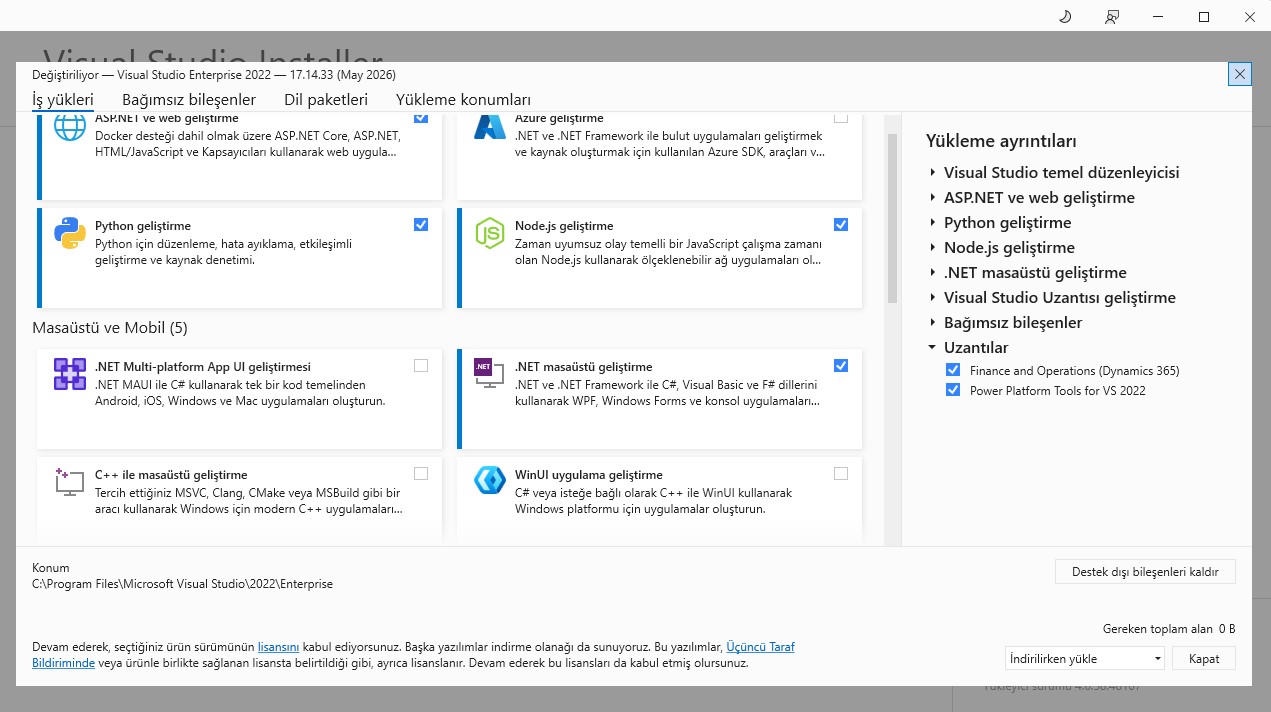
What to check under Individual components
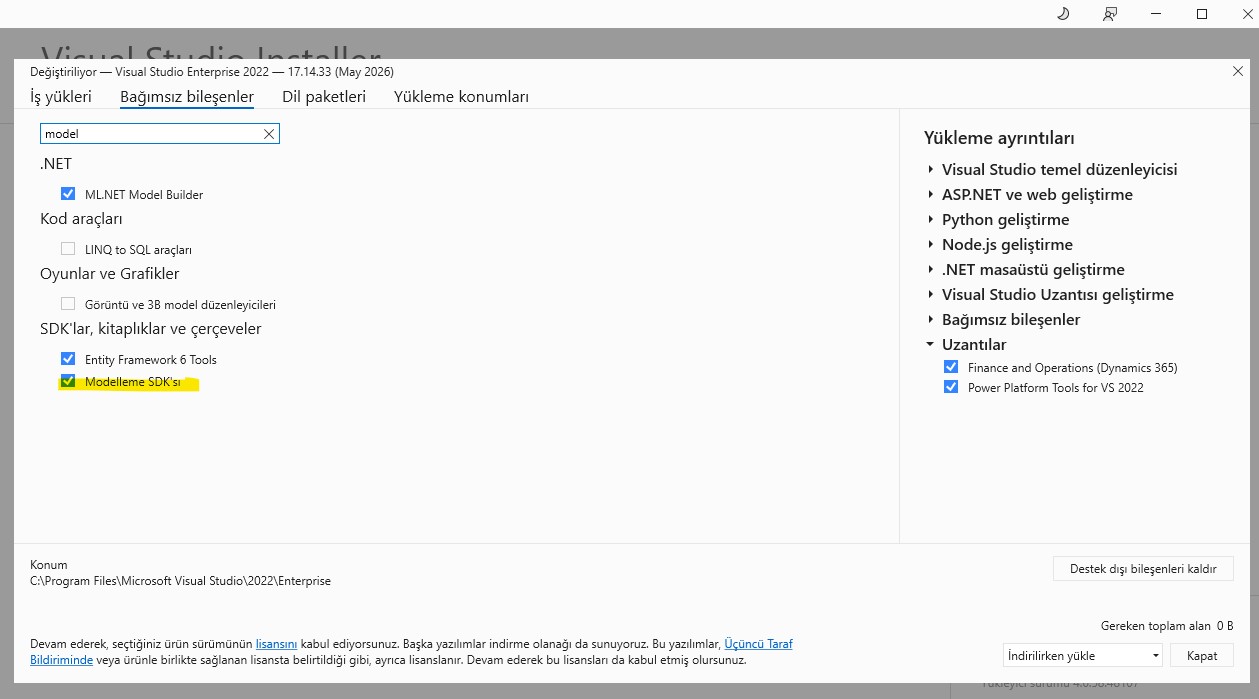
Selecting the workload alone may not be enough. In Visual Studio Installer, you should go to the Individual components tab and make sure that some additional components are selected.
At this point, the following components can especially be checked:
- Modeling SDK
- DGML Editor
- .NET Framework targeting packs
- SQL Server Express LocalDB
- Required MSBuild / build tools components
Modeling SDK and DGML Editor are among the components that teams working with Dynamics 365 Finance & Operations development tools may need.
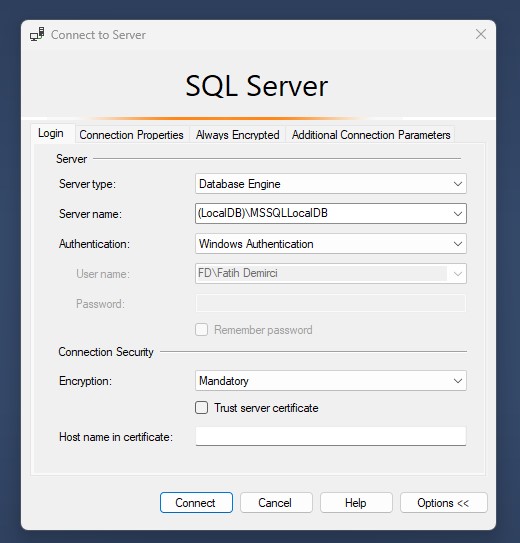
Checking SQL Server Express LocalDB
Although the Finance & Operations runtime runs in the cloud in the UDE model, LocalDB is used on the local development side for some information and structures such as the cross-reference database.
Therefore, you should make sure that SQL Server Express LocalDB is installed and accessible.
SQL Server Management Studio can be used for this check. If SSMS is not installed, it can be installed separately.
Open SSMS as administrator and try connecting with the following server name:
(localdb)\MSSQLLocalDB
If the connection is successful, the LocalDB side is largely ready.
Microsoft Reporting Services Projects extension
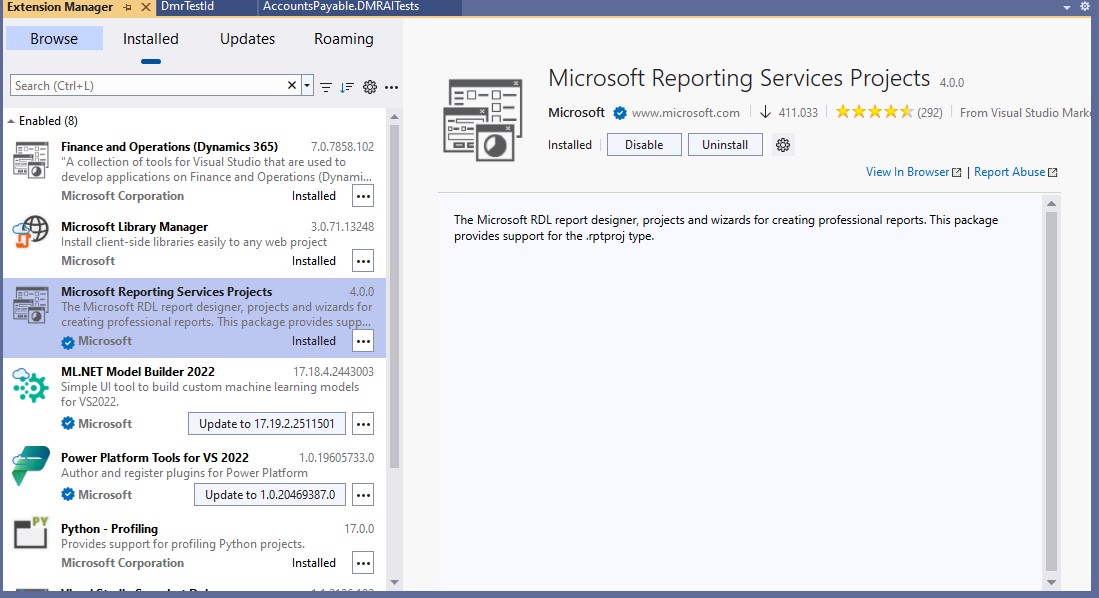
Reporting is still important in Finance & Operations projects. Especially if you need to develop SSRS reports or work with existing report projects, the Microsoft Reporting Services Projects extension should be installed in Visual Studio.
This extension can be installed through Visual Studio Marketplace.
In Visual Studio:
Extensions > Manage Extensions
You can search for “Microsoft Reporting Services Projects” and install the extension from there.
After installation, Visual Studio may need to be closed and opened again.
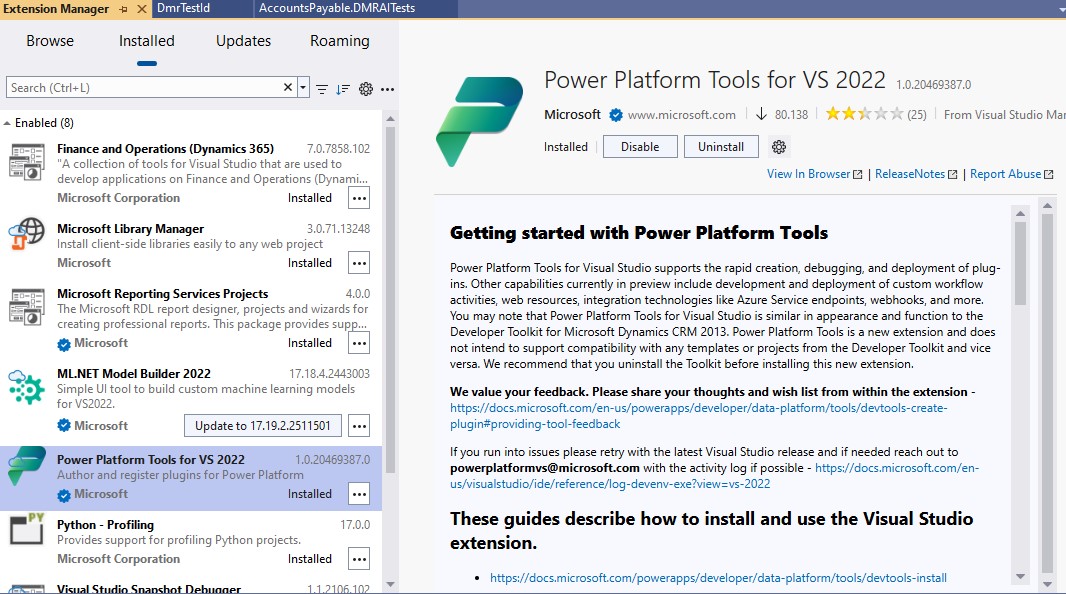
Installing Power Platform Tools for Visual Studio
One of the most critical tools for the UDE connection is the Power Platform Tools extension.
In Visual Studio:
Extensions > Manage Extensions
Go to this menu and search for “Power Platform Tools”. After the extension is installed, Visual Studio should be closed and opened again.
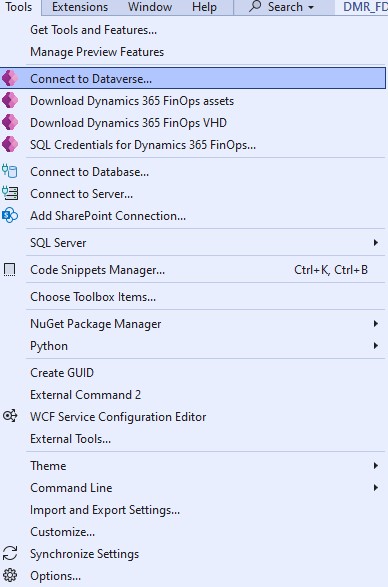
Thanks to this extension, the process of connecting to the Dataverse environment, viewing Power Platform environments, and downloading Finance & Operations assets is initiated from within Visual Studio.
Checking Visual Studio settings
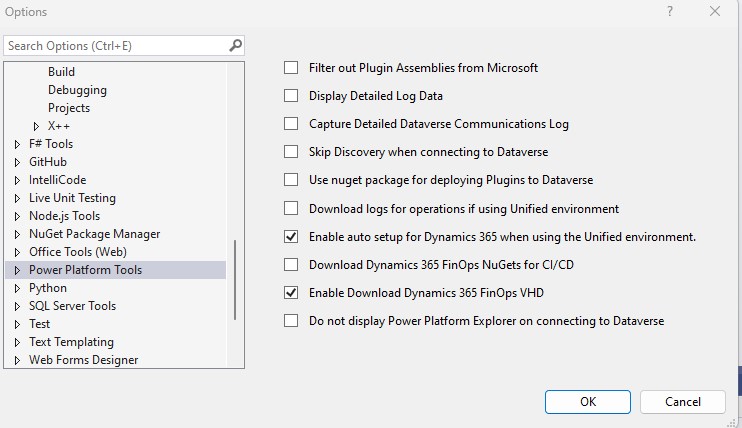
After Power Platform Tools is installed, it is useful to check some settings in Visual Studio.
Tools > Options > Power Platform Tools
The relevant settings can be viewed in this section.
In initial installations, the default settings are usually sufficient. However, in some tenant or security scenarios, settings such as “Skip Discovery” may be required. Especially when working as a guest user in a different tenant, or when the environment is not listed automatically, it is important to understand what these settings do.
We will not go into detailed connection settings in this article. We will cover them in the next article while connecting Visual Studio to the UDE environment.
Short post-installation checklist
Before moving on to the Visual Studio connection, it is useful to run through the following checks:
- Is Visual Studio 2022 installed?
- Is the .NET desktop development workload selected?
- Is Modeling SDK installed?
- Is DGML Editor installed?
- Is SQL Server Express LocalDB running?
- Can you connect to (localdb)\MSSQLLocalDB with SSMS?
- Is the Microsoft Reporting Services Projects extension installed?
- Is the Power Platform Tools extension installed?
- Has Visual Studio been restarted?
- Is there enough free space on the local disk?
- Does the user that will be used in the UDE environment have the required permissions?
This list may look simple, but a significant portion of initial connection problems can be caused by missing Visual Studio components, not restarting after extension installation, LocalDB access issues, or insufficient permissions.
Common mistakes
Trying to use Visual Studio 2019
Visual Studio 2022 should be used on the UDE side. Trying to continue with Visual Studio 2019 out of old habit is not the right approach.
Not selecting the .NET desktop development workload
Even if Visual Studio is installed, some development tools may not work properly if the required workload is not selected.
Skipping Modeling SDK and DGML Editor components
When these components are not installed, unexpected gaps may appear in the Dynamics 365 development tools.
Not restarting Visual Studio after installing Power Platform Tools
After extension installations, Visual Studio must be closed and opened again. Otherwise, menus or connection options may not appear.
Not checking LocalDB
If the LocalDB connection does not work properly, issues may occur with metadata and cross-reference processes.
Underestimating disk space
When Finance & Operations metadata and assets are downloaded, they may use a significant amount of disk space. Not having enough free space on the system drive can cause the setup to stop halfway.
Closing
In this article, we covered Visual Studio 2022 and the core development tools that need to be prepared on the developer machine before connecting to the UDE environment.
Since the development experience in the UDE model is split between the local computer and the Finance & Operations runtime in the cloud, setting up the local Visual Studio environment correctly is very important. When Visual Studio 2022, the required workloads, individual components, Power Platform Tools, LocalDB, and Reporting Services Projects are prepared correctly, we can move to the next step with a stronger foundation.
In the next article, we will connect to the UDE environment from within Visual Studio. We will clarify the distinction between the Environment URL and the Finance and Operations URL, apply the Connect to Dataverse step, and review the Finance & Operations assets and metadata download process. After that, we will make the development environment ready for use by opening Application Explorer and performing the first metadata configuration check.





No comments yet.