UDE, Pipelines, and Modern ALM: Moving Development to Test and Production
UDE, Pipelines, and Modern ALM: Moving Development to Test and Production
Introduction
In the previous part, we built a pipeline that compiles the X++ metadata in our Git repository on a Microsoft-hosted agent and produces a Power Platform unified package. We now have a UnifiedPackage built from a specific Git commit with specific NuGet references and stored as an Azure DevOps artifact.
However, producing the package does not mean that we have moved the development to UAT or Production. If we do not draw a clear boundary between build and deployment, we end up rebuilding for every environment, losing visibility of who approved what, and being unable to trace the code in Production back to a specific commit.
In this part, we will examine the release/deployment pipeline that promotes the build output through Test, UAT, and Production in a controlled manner. We will clarify the branch strategy, approvals and checks in Azure DevOps Environments, the service connection structure, and deployment rules. At the end, we will monitor the package sent from DevOps in a real Test/UAT environment and verify that our development has reached the F&O user interface.
Where this part fits in the series: We are completing the development, Git, branch, build, and package structure established in the earlier parts with a real Test/UAT deployment. The same artifact, approval, and traceability principles will also apply when moving to Production.
What We Carry Forward from the Previous Part
At the end of Part 9, the build pipeline produced the following information together:
-
Git commit SHA and branch information
-
Platform and application NuGet versions
-
Build.BuildNumber and the pipeline run link
-
Power Platform UnifiedPackage.zip artifact
-
The classic AXDeployableRuntime.zip output, when required
The release pipeline is not responsible for compiling the source code again. Its job is to move this controlled output to the correct environment under the correct identity.
Core principle: Build once and promote the same artifact. The package validated in Test and the package deployed to Production must be byte-for-byte identical.
Dev, Test, UAT, and Production Do Not Mean the Same Thing
On the UDE side, we need to distinguish the Development environment from controlled deployment environments. Development is part of the daily development cycle; Test, UAT, and Production are part of release management.
| Environment | Primary purpose | Deployment approach | Approval |
|---|---|---|---|
| Developer UDE | Coding, debugging, and quick validation | Direct/incremental deployment from Visual Studio | Developer control |
| Test | Technical validation and smoke testing | Automatic or controlled through the release pipeline | Usually automatic |
| UAT / Pre-Prod | Business acceptance and go/no-go | The same UnifiedPackage artifact | Functional/business approval |
| Production | Live operation | Controlled deployment during a maintenance window | Technical + business approval |
The critical point is this: a change deployed directly from Visual Studio to a Developer UDE is not the package that will later be promoted to UAT. Controlled environments must receive an artifact produced by the pipeline from an approved commit in Git.
Branch Strategy: Where Does the Release Branch Fit?
The branch structure may vary with team size. In Dynamics 365 projects, I find it useful to keep the boundaries between feature, dev, release, and main clearly visible.
| Branch | Purpose | Build / deployment behavior |
|---|---|---|
| feature/* | A single development or work item | Fast validation before the PR; it is not deployed to a shared environment without control. |
| dev | Integration branch for completed developments | A candidate for daily builds and the technical Test environment. |
| release/* | Freeze the version that will move to UAT and Production | UnifiedPackage is produced from the controlled commit on this branch. |
| main | Reference for the approved version deployed to Production | After the Production deployment, the release branch is merged and tagged. |
| hotfix/* | A limited fix for an urgent Production issue | Created from the Production version/tag; it produces a new artifact and passes through the approval chain. |
A sample flow could look like this:
-
Merge the feature/1450-sales-order-control branch into dev through a PR.
-
Create release/2026.08 from dev when preparing the UAT candidate.
-
The build pipeline compiles the commit on the release branch and produces the UnifiedPackage artifact.
-
Validate the same artifact in the Test and UAT environments.
-
After Production approval, deploy the same artifact to Production.
-
After a successful deployment, merge the release branch into main and create a tag such as v2026.08.1.
My approach: Once UAT has started, accept only fixes that belong to the current release into the release branch. Keeping new features in the dev branch prevents the UAT scope from changing continuously.
Separating the Build Pipeline from the Release Pipeline
| Topic | Build pipeline | Release / deployment pipeline |
|---|---|---|
| Input | Git commit + NuGet references | Approved UnifiedPackage artifact |
| Primary action | Compile X++ and produce the package | Deploy the package to the target environment |
| When repeated | When a new commit arrives | In each environment for the same artifact |
| Permissions | Repository and feed access | Target-environment service connection |
| Control | PR/build validation | Approval, Business Hours, and Exclusive Lock |
It is not mandatory to separate the two pipelines; build and deployment steps can also be defined in a single multi-stage YAML file. In larger projects, however, keeping the build artifact in a separate run makes it easier to restart a release and trace which package was sent to which environment.
Approvals and Checks with Azure DevOps Environments
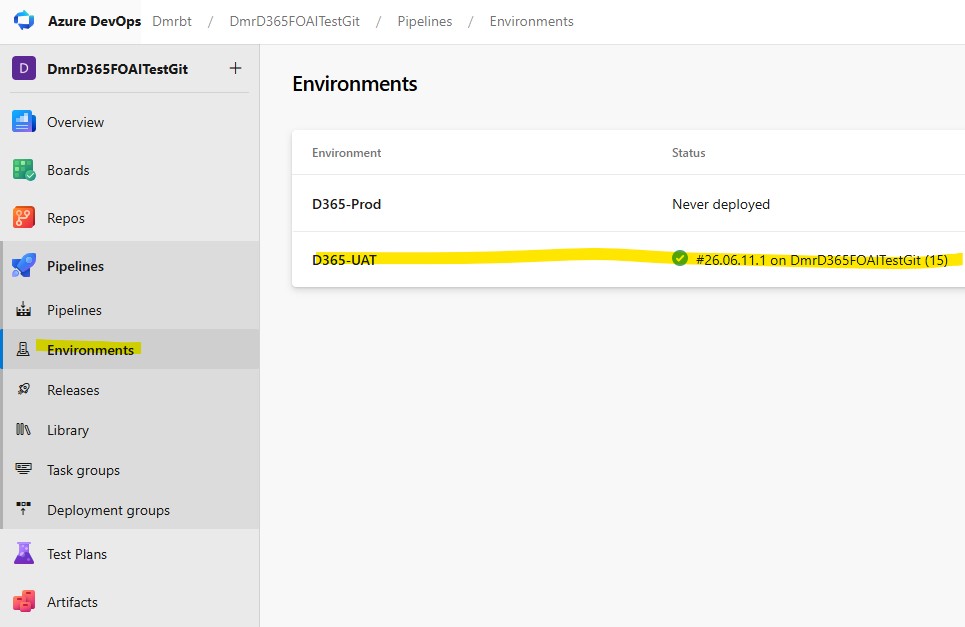
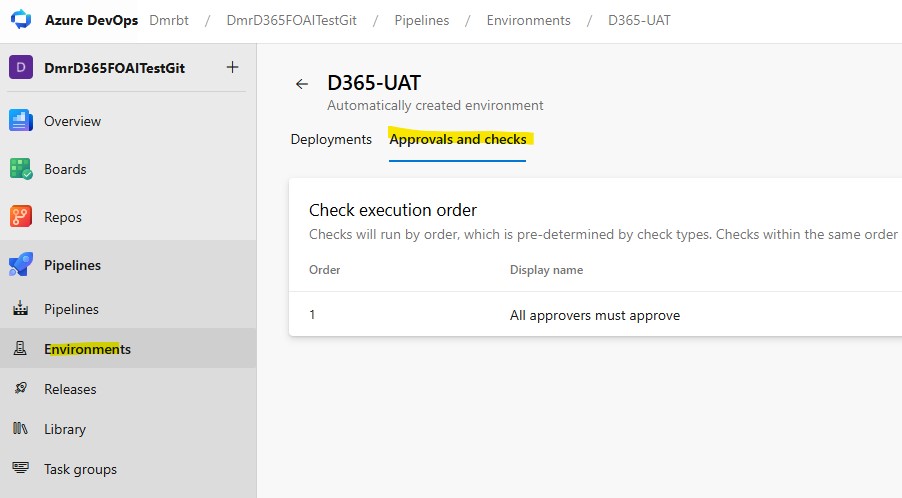
An Azure DevOps Environment is more than a label that stores an environment name. When a deployment job targets it, Azure DevOps records deployment history and applies the approvals and checks defined by the resource owner before the stage begins.
| Azure DevOps environment | Recommended check | Recommended owner |
|---|---|---|
| Test | Automatic deployment without approval | Technical team |
| UAT | At least one approval; Business Hours if needed | Project manager / functional lead |
| Production | Approval + Business Hours + Exclusive Lock | Change board / business owner / technical owner |
Defining the approval mechanism under Approvals and checks on the Production environment creates a stronger boundary than relying only on a ManualValidation step in YAML. A person who changes the pipeline YAML cannot then remove the Production approval rule alone; control remains with the environment owner.
Important: Approval is not simply a mechanism for someone to press a button. The approver should not approve a deployment without seeing the artifact number, UAT result, maintenance window, and recovery plan.
Service Connections and Workload Identity Federation
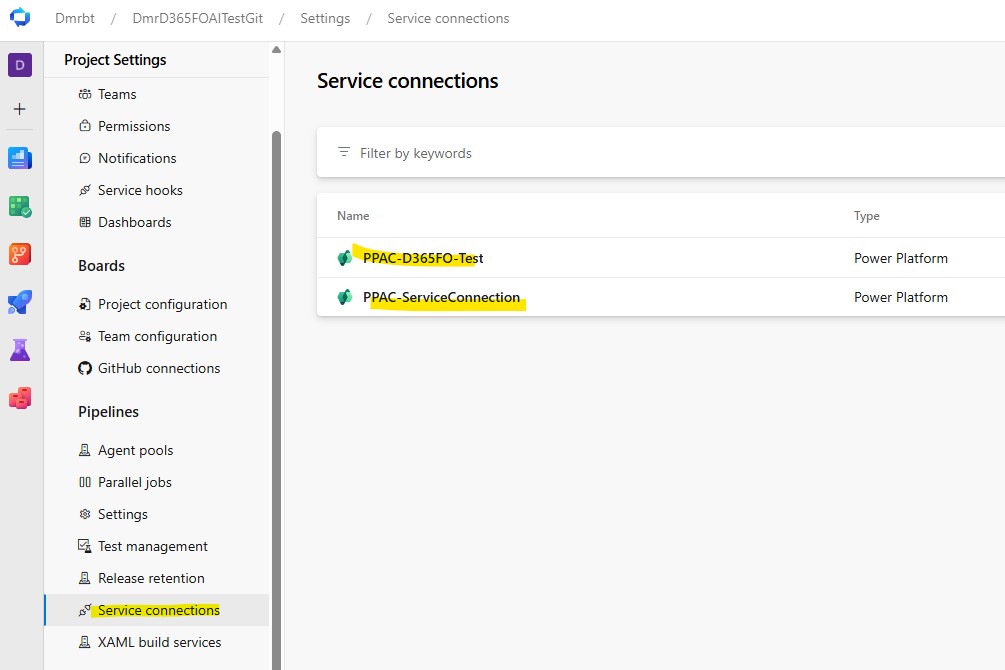
The release pipeline should not connect to the target environment with a user account. Authentication should use a Power Platform service connection backed by a Microsoft Entra ID app registration. Current Microsoft examples recommend workload identity federation instead of storing a client secret.
| Connection | Target | Example name |
|---|---|---|
| Test service connection | Test environment URL | PowerPlatform-Test |
| UAT service connection | UAT environment URL | PowerPlatform-UAT |
| Production service connection | Production environment URL | PowerPlatform-Prod |
A separate federated credential can be defined for each service connection under a single app registration. Projects that require stricter isolation can use a separate app registration and service connection for each environment.
The app registration must be created as an application user in every target environment and assigned a security role that is sufficient for package deployment. Microsoft’s tutorial uses the System Administrator role; in an enterprise project, it is better to validate the required permissions and use the narrowest practical set of roles whenever possible.
Security rule: Client secrets, user passwords, and environment URLs must not be written directly into YAML. Service connections, variable groups, and environment-based permission boundaries should be used together.
Sample Release Pipeline YAML
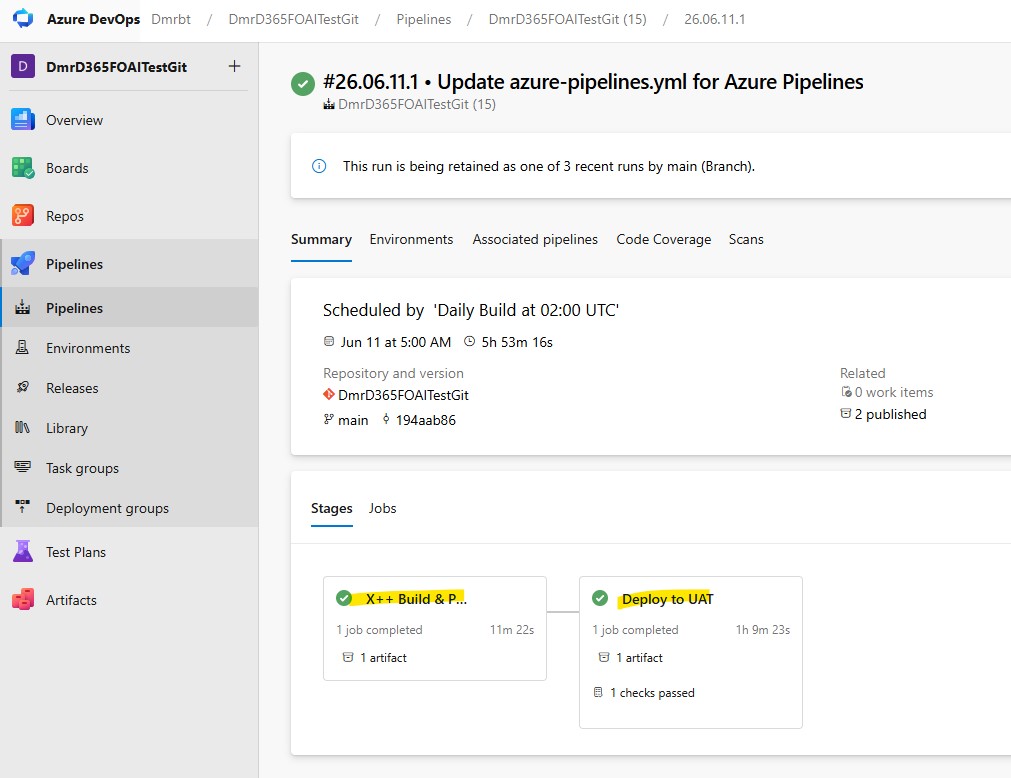
The following example promotes the UnifiedPackage artifact produced by the ude-build pipeline from Part 9 to Test, UAT, and Production. Test runs automatically; approvals for UAT and Production are configured on Azure DevOps Environments.
Agent note: The Power Platform Deploy Package task requires a Windows agent. Because Finance and Operations package deployments can take longer than one hour, a self-hosted Windows agent may be preferable. If a Microsoft-hosted agent is used, set the deployment job timeout to at least 180 minutes; larger packages may require more time.
trigger: none

resources:
  pipelines:
  - pipeline: UDEBuild
    source: 'ude-build'
    trigger:
      branches:
        include:
        - release/*

pool:
  name: 'Self-Hosted-Windows'

variables:
  TestServiceConnection: 'PowerPlatform-Test'
  UATServiceConnection: 'PowerPlatform-UAT'
  ProdServiceConnection: 'PowerPlatform-Prod'
  TestEnvironmentUrl: 'https://yourtest.crm.dynamics.com'
  UATEnvironmentUrl: 'https://youruat.crm.dynamics.com'
  ProdEnvironmentUrl: 'https://yourprod.crm.dynamics.com'
  UnifiedPackagePath: '$(Pipeline.Workspace)/UDEBuild/UnifiedPackage/UnifiedPackage.zip'

stages:
- stage: DeployToTest
  displayName: 'Deploy to Test'
  jobs:
  - deployment: DeployTest
    displayName: 'Deploy unified package to Test'
    environment: 'Test'
    timeoutInMinutes: 180
    strategy:
      runOnce:
        deploy:
          steps:
          - download: UDEBuild
            artifact: 'UnifiedPackage'
          - task: PowerPlatformToolInstaller@2
            displayName: 'Install Power Platform Build Tools'
          - task: PowerPlatformWhoAmI@2
            displayName: 'Verify Test connection'
            inputs:
              authenticationType: 'PowerPlatformSPN'
              PowerPlatformSPN: '$(TestServiceConnection)'
          - task: PowerPlatformDeployPackage@2
            displayName: 'Deploy package to Test'
            inputs:
              authenticationType: 'PowerPlatformSPN'
              PowerPlatformSPN: '$(TestServiceConnection)'
              PackageFile: '$(UnifiedPackagePath)'
              Environment: '$(TestEnvironmentUrl)'

- stage: DeployToUAT
  displayName: 'Deploy to UAT'
  dependsOn: DeployToTest
  condition: succeeded()
  jobs:
  - deployment: DeployUAT
    displayName: 'Deploy unified package to UAT'
    environment: 'UAT'  # Approval/check is configured on this environment
    timeoutInMinutes: 180
    strategy:
      runOnce:
        deploy:
          steps:
          - download: UDEBuild
            artifact: 'UnifiedPackage'
          - task: PowerPlatformToolInstaller@2
            displayName: 'Install Power Platform Build Tools'
          - task: PowerPlatformWhoAmI@2
            displayName: 'Verify UAT connection'
            inputs:
              authenticationType: 'PowerPlatformSPN'
              PowerPlatformSPN: '$(UATServiceConnection)'
          - task: PowerPlatformDeployPackage@2
            displayName: 'Deploy package to UAT'
            inputs:
              authenticationType: 'PowerPlatformSPN'
              PowerPlatformSPN: '$(UATServiceConnection)'
              PackageFile: '$(UnifiedPackagePath)'
              Environment: '$(UATEnvironmentUrl)'

- stage: DeployToProduction
  displayName: 'Deploy to Production'
  dependsOn: DeployToUAT
  condition: succeeded()
  lockBehavior: sequential  # Use together with an Exclusive Lock check
  jobs:
  - deployment: DeployProd
    displayName: 'Deploy unified package to Production'
    environment: 'Production'  # Approval/check is configured here
    timeoutInMinutes: 240
    strategy:
      runOnce:
        deploy:
          steps:
          - download: UDEBuild
            artifact: 'UnifiedPackage'
          - task: PowerPlatformToolInstaller@2
            displayName: 'Install Power Platform Build Tools'
          - task: PowerPlatformWhoAmI@2
            displayName: 'Verify Production connection'
            inputs:
              authenticationType: 'PowerPlatformSPN'
              PowerPlatformSPN: '$(ProdServiceConnection)'
          - task: PowerPlatformDeployPackage@2
            displayName: 'Deploy package to Production'
            inputs:
              authenticationType: 'PowerPlatformSPN'
              PowerPlatformSPN: '$(ProdServiceConnection)'
              PackageFile: '$(UnifiedPackagePath)'
              Environment: '$(ProdEnvironmentUrl)'
Reading the Pipeline Steps
| Step | Task | Purpose |
|---|---|---|
| Artifact download | download: UDEBuild | Downloads the same UnifiedPackage.zip produced by the build pipeline. |
| Tool installer | PowerPlatformToolInstaller@2 | Prepares the current Power Platform CLI-based Build Tools tasks. |
| Connection check | PowerPlatformWhoAmI@2 | Validates the service connection identity before deployment begins. |
| Package deployment | PowerPlatformDeployPackage@2 | Deploys the unified package to the target unified environment. |
| Environment | deployment job | Defines the boundary for approvals/checks and deployment history. |
Every stage uses the same UnifiedPackagePath variable. Not rebuilding the package after it has been validated in Test is one of the most important principles in this modern ALM flow.
How Should We Design the Deployment Strategy?
Test: Fast, Automated Feedback
After the release branch build completes, the package can be deployed automatically to the Test environment. Basic sign-in, batch, integration, and critical business-process smoke tests are run there. The goal is not flawless user acceptance testing, but a quick confirmation that the package installs and operates correctly at a technical level.
UAT: Business Acceptance and Release Freeze
The UAT stage should begin only after Test succeeds and the designated approver gives approval. While UAT is in progress, only fixes within the scope of the same release should be accepted into the release branch. Every fix produces a new commit and a new artifact; the previous artifact is never replaced silently.
Production: Maintenance Window and Two-Layer Control
In addition to an environment approval, Production can use Business Hours or ManualValidation. Because deployment may take a long time, the maintenance window should account not only for the start time but also for the expected total duration and the post-deployment smoke-test period.
Using an Exclusive Lock check on the Production environment prevents two releases from moving to Production at the same time. `lockBehavior: sequential` makes the handling of queued releases explicit.
Go/No-Go Check Before Production
-
Have the artifact name, build number, and Git commit SHA been verified?
-
Has UAT been accepted, and have all open critical issues been closed?
-
Are the package platform/application versions compatible with the environment version?
-
Did the service connection and WhoAmI check succeed in the latest run?
-
Have the maintenance window and estimated deployment duration been communicated?
-
Have the owners of batch jobs, integrations, and external systems been notified?
-
Are the last known good artifact and the rollback/forward-fix plan ready?
-
Are the owners of the post-deployment smoke tests identified?
Practical recommendation: Add the build number, commit SHA, UAT result, maintenance window, and change-record link to the approval description. The approver should not have to gather this information from other places.
Post-Deployment Validation
A successful pipeline does not, by itself, prove that the business application works as expected. A short but standardized smoke-test checklist should be run after deployment.
-
Sign-in and access to the main workspaces/forms
-
Critical business processes included in the release scope
-
Status of batch jobs and scheduled tasks
-
OData, custom services, dual-write, and other integrations
-
Opening critical reports and outputs
-
Azure DevOps deployment history and the package deployment record
Let’s Discuss Rollback Up Front
Package deployment should not be treated as if it were as simple as reverting a Git commit. The impact on code, metadata, schema, and business data may differ. A rollback plan therefore cannot consist only of the sentence, ‘We will deploy the old zip file again.’
Keeping the last known good artifact is important; however, for some issues it may be safer to produce a new forward fix than to return to the previous package. Environment backup/restore and business-recovery steps should also be considered for changes that affect schema or data.
Warning: Before deployment begins, it should be documented who can make the recovery decision, how quickly the decision must be made, and how any data impact will be handled. A Production incident is not the right time to discuss this plan for the first time.
What Should the Hotfix Flow Look Like?
For an urgent Production issue, use a shorter but still traceable hotfix flow instead of disabling the approval chain completely:
-
Create a hotfix/* branch from the main branch or release tag that represents the Production version.
-
Keep the fix limited in scope and review it through a PR.
-
Produce a new UnifiedPackage artifact from the new commit.
-
Run the shortest practical Test/UAT validation.
-
Promote to Production with an emergency change record and authorized approval.
-
Merge the hotfix back into main, release, and, when necessary, dev.
Permission to bypass Azure DevOps checks should belong only to the resource administrator. If a bypass is used, the deployment record must continue to show who performed it.
Deployment History and Traceability
The value of modern ALM is not only automation, but also the ability to answer questions after the fact. Azure DevOps Environments deployment history shows which pipeline run targeted which environment, the result, and the approval details. On the unified-environment side, Finance and Operation Package Manager provides a second control point where we can monitor the status and processing history of submitted packages.
A release record should contain at least the build number, commit SHA, source branch, package version, target environment, approver, deployment start and end times, and smoke-test result. Checking both the Azure DevOps record and the package status in Package Manager validates both sides of the chain.
Monitoring the Package in Power Platform
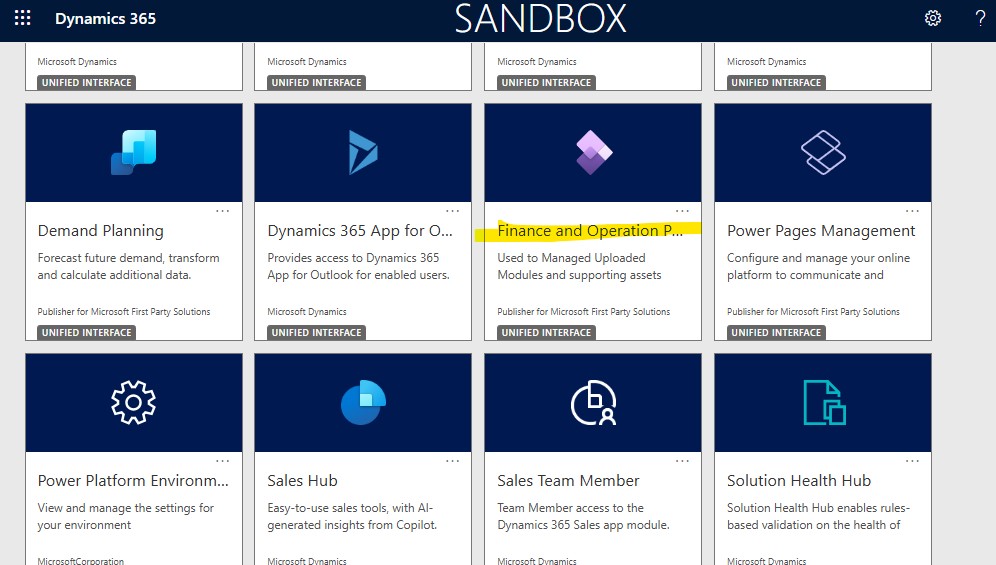
After deployment completes, we should not be satisfied simply because the pipeline is green. When we open the relevant Test/UAT environment in Power Platform admin center and navigate to the Dynamics 365 apps list, we can see the Finance and Operation Package Manager app. This app lets us monitor the environment-side processing of the unified package deployment.
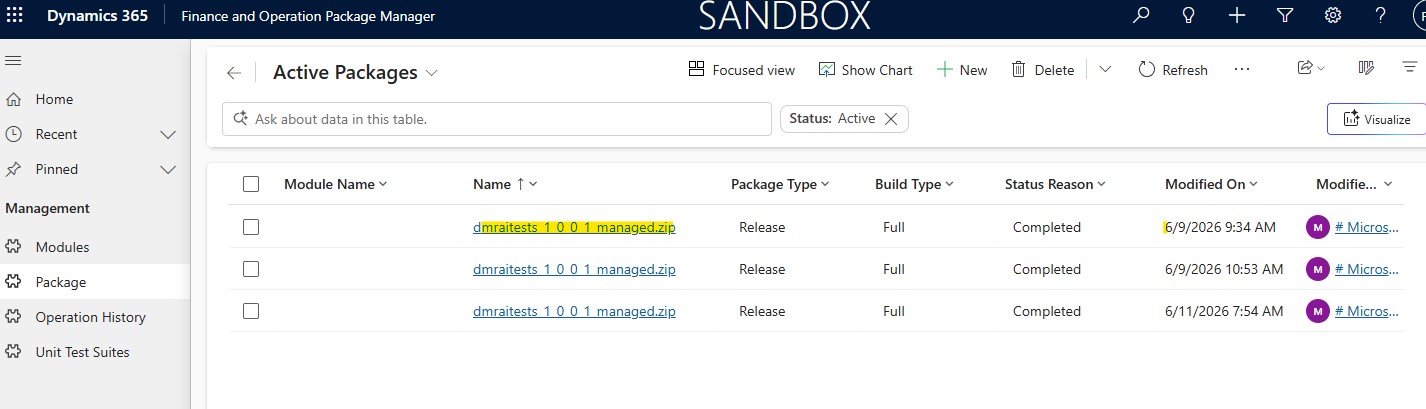
When we open the app, the Active Packages list displays the packages submitted by the DevOps pipeline. Package Type, Build Type, Status Reason, and Modified On help us understand the current stage of the deployment. In the following example, a Status Reason of Completed indicates that processing has finished on the environment side. This record still does not replace functional validation inside the application.
Final Validation of the Development in UAT
A Completed package status means that the technical deployment is finished. As the final step, we should open the F&O application and confirm that the feature we developed is actually visible in the target environment. The Customers menu item that we added to Accounts payable at the beginning of the series appears in the Test/UAT environment, providing a simple but important smoke test of the full chain from source code to the user interface.
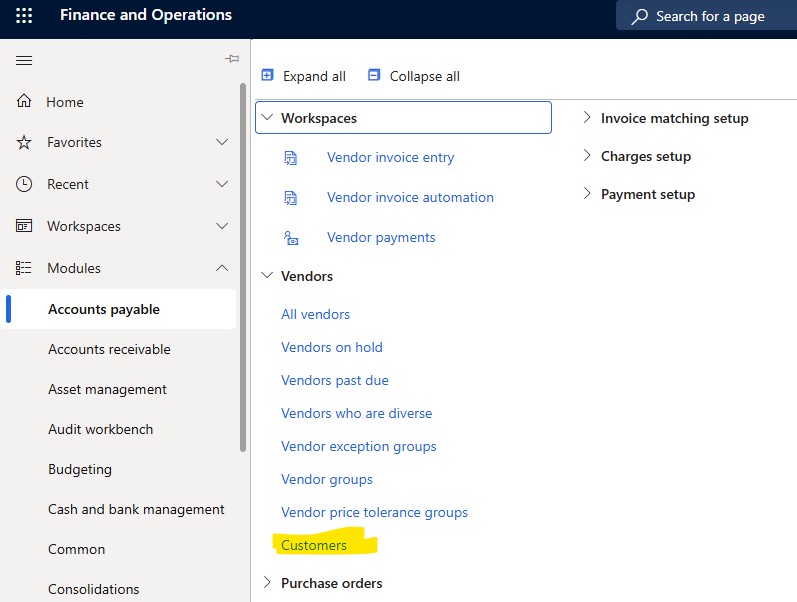
With this screen, we have verified end to end that the metadata committed to Git was built, converted into a UnifiedPackage artifact, deployed through DevOps to a separate Test/UAT environment, and delivered to the end-user interface.
Common Issues
| Error / symptom | Likely cause and check |
|---|---|
| WhoAmI authentication failed | The federated credential subject does not match the service connection name, or the application user is missing. |
| PackageFile not found | The pipeline resource alias, artifact name, or path under Pipeline.Workspace is incorrect. |
| Deploy task unsupported OS | Power Platform Deploy Package must run on a Windows agent. |
| Deployment timeout | The hosted-agent limit is insufficient; increase the timeout or use a self-hosted Windows agent. |
| Approval is not triggered | The stage may be using a normal job; the deployment job must specify the target Azure DevOps environment. |
| Deployment to the wrong environment | The service connection and Environment URL variable do not point to the same target. |
| Two deployments overlap | The Production environment has no Exclusive Lock check, or lock behavior is not defined. |
| Version mismatch | The artifact’s platform/application versions are not compatible with the target environment. |
Practical Summary of This Part
In this part, we connected all the links in the development infrastructure that we built from scratch at the beginning of the series. We created the Git repository and branch structure, developed and validated the X++ metadata in the UDE Development environment, and produced a UnifiedPackage artifact from a specific commit through an Azure DevOps pipeline.
We then deployed the same package through DevOps to a separate Test/UAT unified environment. We monitored the process until it showed Completed in Finance and Operation Package Manager, and then verified that our development reached the target environment by locating the Customers menu item under Accounts payable in the F&O interface.
This completes the technical backbone of the UDE series, from preparing the Development environment to performing a controlled Test/UAT deployment. The same principles—promoting the same package, authorized approval, a maintenance window, post-deployment validation, and a recovery plan—will apply to Production. In my view, the greatest benefit of modern ALM is trust and traceability before speed.
Next in the Series: Coding with AI
In this part, we completed the flow of building a Development infrastructure from scratch, testing the development in our own UDE environment, and deploying it through DevOps to another Test/UAT environment. In the next article, we will focus more on the coding experience than on infrastructure: how to use AI while developing in X++, how to provide the right context, how to review generated code, and where developer responsibility begins. The current technical series can therefore be considered complete with this part, while AI-assisted development will continue as a new topic.
References
- Microsoft Learn – Set up a release pipeline for finance and operations apps using Azure DevOps
- Microsoft Learn – Continuous integration and deployment for unified environments
- Microsoft Learn – Create and target Azure DevOps environments for pipelines
- Microsoft Learn – Pipeline deployment approvals and checks
- Microsoft Learn – Power Platform Build Tools tasks
Regards.
Fatih Demirci
www.fatihdemirci.net





No comments yet.