UDE Build and Package Creation with an Azure DevOps Pipeline
UDE Build and Package Creation with an Azure DevOps Pipeline
Introduction
In the previous part of the series, we discussed how a local build and deployment to an online UDE environment are separate steps. During day-to-day development, we can run a quick project build in Visual Studio and deploy our changes to the connected environment.
When we move to controlled environments such as UAT or production, however, a build created on a developer’s computer is not enough. The same Git commit must be compiled against the same references, and the resulting package must be stored as a pipeline artifact.
In this part, we will create an Azure DevOps YAML pipeline that runs on a Microsoft-hosted Windows agent. The pipeline will compile the X++ metadata in the repository, create a unified package and, when required, a traditional deployable package, and then publish the outputs as artifacts.
Scope of this article: This part focuses on build and package creation. Deploying the resulting unified package to Test, UAT, and Production environments with approval mechanisms will be the subject of the next part.
Overall Flow
At its simplest, we can think of the build pipeline as the following flow:
| Input | Process | Output |
|---|---|---|
| Git repository | NuGet restore | Compiler and reference packages |
| Metadata + .sln/.rnrproj | Compile X++ with VSBuild / MSBuild | X++ binary outputs |
| X++ binary outputs | XppCreatePackage@3 | Unified package and/or deployable package |
| Package outputs | PublishBuildArtifacts | Artifact consumed by the release pipeline |
Prerequisites
Before creating the pipeline, several components must be ready in the repository and the Azure DevOps organization.
- An Azure DevOps organization, project, and Git repository
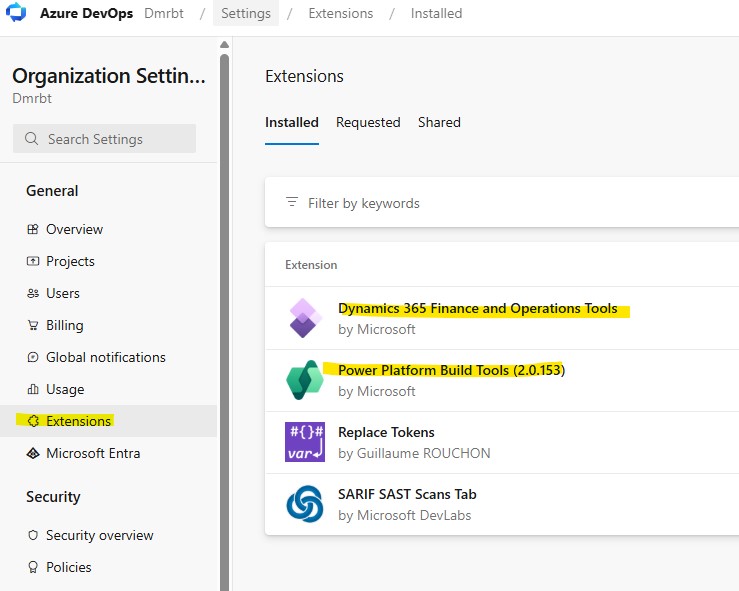
- The Dynamics 365 Finance and Operations Tools and Power Platform Build Tools extensions
- An .rnrproj file representing the package to build and, preferably, an .sln file
- Custom metadata, the Descriptor folder, and model descriptor files
- X++ Compiler and Build Reference NuGet packages compatible with the target environment version
- Reader permission for the pipeline build service account on the Azure Artifacts feed
Important: The pipeline cannot determine what to build merely by finding AxClass, AxTable, or AxForm XML files. The repository must contain the .rnrproj file representing the package to build, along with the model descriptor information.
Aligning the Repository Structure with Parts 7 and 8
We can make the repository structure used in the previous parts a little more concrete for the build pipeline:
D365FO-UDE
│
├── Metadata
│   └── DMRCustomizations
│       ├── Descriptor
│       └── DMRCustomizations
│
├── Projects
│   └── DMR_FD_AITest1
│       ├── DMR_FD_AITest1.sln
│       └── DMR_FD_AITest1.rnrproj
│
├── Build
│   ├── azure-pipelines.yml
│   ├── packages.config
│   └── nuget.config
│
└── README.md
Here, MetadataPath, SolutionPath, and the location of the Build folder will be defined as variables in YAML. This means we will not need to repeat paths in every step when adapting the pipeline file to different projects.
Required Azure DevOps Extensions
We need two extensions in the Azure DevOps organization. Dynamics 365 Finance and Operations Tools provides the XppCreatePackage@3 task, while Power Platform Build Tools supports the release and deployment steps that follow.
NuGet Packages Required for X++ Builds
A Microsoft-hosted agent does not include the PackagesLocalDirectory available on a traditional development VM. We therefore need to provide the X++ compiler and Microsoft reference binaries to the pipeline through NuGet packages.
Microsoft’s current example uses the following five packages for a complete X++ build:
| NuGet package | Purpose |
|---|---|
| Microsoft.Dynamics.AX.Platform.CompilerPackage | xppc.exe, MSBuild tasks, and X++ build tools |
| Microsoft.Dynamics.AX.Platform.DevALM.BuildXpp | Build reference binaries for the Platform module |
| Microsoft.Dynamics.AX.Application1.DevALM.BuildXpp | First part of the Application reference package |
| Microsoft.Dynamics.AX.Application2.DevALM.BuildXpp | Second part of the Application reference package |
| Microsoft.Dynamics.AX.ApplicationSuite.DevALM.BuildXpp | Application Suite build reference binaries |
The Application package is split into two parts because of Azure DevOps package size limits. Two packages may be sufficient for limited projects that develop only at the platform level; for projects extending Finance or Supply Chain functionality, using all five packages is safer.
Version rule: The versions of the NuGet references used during the build must be compatible with the target environment version. When a new quality update is applied to the environment, the pipeline package versions must also be reviewed.
Where Can We Download the NuGet Packages?
In the current Unified Experience flow, the packages can be downloaded using the Download Dynamics 365 FnO NuGets for CI/CD option in the Power Platform Visual Studio extension. Depending on the access or tenant scenario, the LCS Shared Asset Library can also be used.
Creating the FinOpsNuGet Feed in Azure Artifacts
Instead of adding the downloaded NuGet packages to the repository, we will store them in an Azure Artifacts feed. This prevents source control from growing with unnecessary binary files and lets us manage package versions through packages.config.
- In the Azure DevOps project, open Artifacts → Create Feed.
- Set the feed name to FinOpsNuGet.
- Push the five .nupkg files compatible with the target environment version to the feed.
- Under Feed Settings → Permissions, grant Reader permission to the project build service account.
- Copy the v3 endpoint URL from the Connect to feed page.
nuget.exe push -Source "https://pkgs.dev.azure.com/<org>/<project>/_packaging/FinOpsNuGet/nuget/v3/index.json" -ApiKey AZ <package-name>.nupkg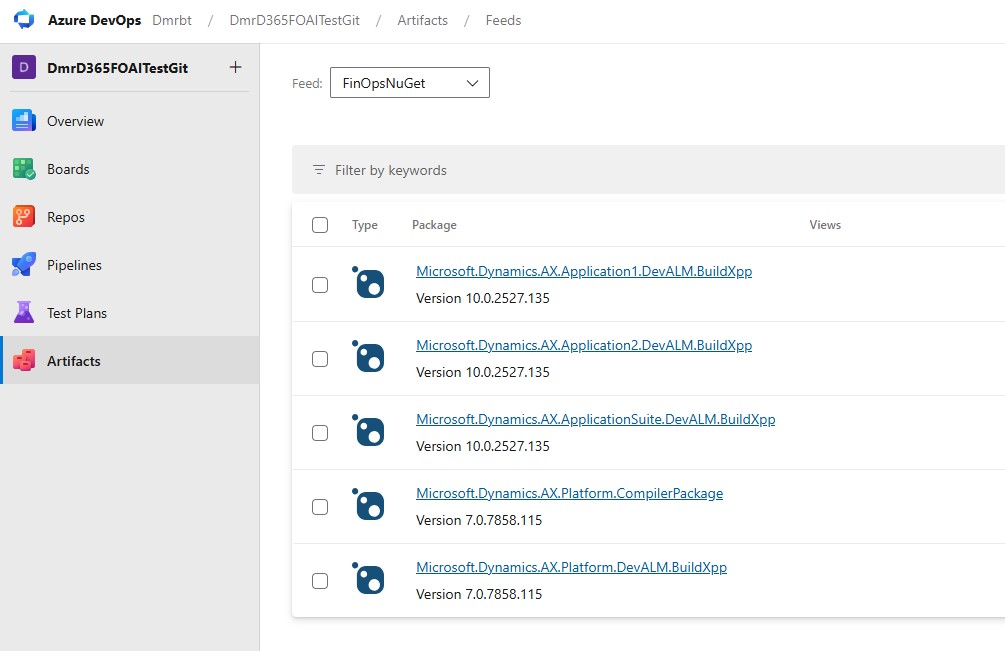
The nuget.config File
nuget.config determines the feed from which the pipeline downloads packages. The safest approach is to obtain the feed URL from the Azure DevOps Connect to feed page.
<?xml version="1.0" encoding="utf-8"?>
<configuration>
  <packageSources>
    <clear />
    <add key="FinOpsNuGet"
         value="https://pkgs.dev.azure.com/<org>/<project>/_packaging/FinOpsNuGet/nuget/v3/index.json" />
  </packageSources>
</configuration>
Security note: Do not store a username or personal access token for the feed in nuget.config. Use the Azure DevOps pipeline’s own build identity and the feed permission model.
The packages.config File
packages.config determines which NuGet packages are restored and their exact versions. The values below belong to the 10.0.47 / PU71 example shown in the screenshots; verify them against the .nupkg versions in your own feed.
<?xml version="1.0" encoding="utf-8"?>
<packages>
  <package id="Microsoft.Dynamics.AX.Platform.CompilerPackage"
           version="7.0.7858.115" targetFramework="net40" />
  <package id="Microsoft.Dynamics.AX.Platform.DevALM.BuildXpp"
           version="7.0.7858.115" targetFramework="net40" />
  <package id="Microsoft.Dynamics.AX.Application1.DevALM.BuildXpp"
           version="10.0.2527.135" targetFramework="net40" />
  <package id="Microsoft.Dynamics.AX.Application2.DevALM.BuildXpp"
           version="10.0.2527.135" targetFramework="net40" />
  <package id="Microsoft.Dynamics.AX.ApplicationSuite.DevALM.BuildXpp"
           version="10.0.2527.135" targetFramework="net40" />
</packages>
Note: Platform and application packages use different version formats. It is normal for Platform packages to use 7.0.x and Application packages to use 10.0.x.
Creating the YAML Pipeline
We can prepare the Build/azure-pipelines.yml file in the repository using the basic flow below. For the first attempt, it is better to run the pipeline manually. Once the build is stable, a nightly schedule or dev/main branch trigger can be added.
The following example uses the DMR_FD_AITest1 solution and the Metadata folder:
trigger: none

pool:
  vmImage: 'windows-latest'

variables:
  PlatformVersion: '7.0.7858.115'
  ApplicationVersion: '10.0.2527.135'

  BuildConfigPath: '$(Build.SourcesDirectory)/Build'
  NuGetInstallDir: '$(Build.SourcesDirectory)/NuGets'
  MetadataPath: '$(Build.SourcesDirectory)/Metadata'
  SolutionPath: '$(Build.SourcesDirectory)/Projects/DMR_FD_AITest1/DMR_FD_AITest1.sln'

  CompilerPackage: '$(NuGetInstallDir)/Microsoft.Dynamics.AX.Platform.CompilerPackage'
  PlatformBuildRef: '$(NuGetInstallDir)/Microsoft.Dynamics.AX.Platform.DevALM.BuildXpp'
  App1BuildRef: '$(NuGetInstallDir)/Microsoft.Dynamics.AX.Application1.DevALM.BuildXpp'
  App2BuildRef: '$(NuGetInstallDir)/Microsoft.Dynamics.AX.Application2.DevALM.BuildXpp'
  AppSuiteBuildRef: '$(NuGetInstallDir)/Microsoft.Dynamics.AX.ApplicationSuite.DevALM.BuildXpp'

  UnifiedPackageOutput: '$(Build.ArtifactStagingDirectory)/UnifiedPackage'

stages:
- stage: Build
  displayName: 'Compile X++ and Create Package'
  jobs:
  - job: BuildXpp
    displayName: 'Build X++ and package'
    timeoutInMinutes: 120
    steps:
    - checkout: self
      clean: true

    - task: NuGetCommand@2
      displayName: 'Restore X++ build packages'
      inputs:
        command: 'custom'
        arguments: >
          install "$(BuildConfigPath)/packages.config"
          -ConfigFile "$(BuildConfigPath)/nuget.config"
          -OutputDirectory "$(NuGetInstallDir)"
          -ExcludeVersion
          -Verbosity Detailed
          -Noninteractive

    - task: VSBuild@1
      displayName: 'Build X++ solution'
      inputs:
        solution: '$(SolutionPath)'
        vsVersion: '17.0'
        msbuildArgs: >
          /p:BuildTasksDirectory="$(CompilerPackage)/DevAlm"
          /p:MetadataDirectory="$(MetadataPath)"
          /p:FrameworkDirectory="$(CompilerPackage)"
          /p:ReferenceFolder="$(PlatformBuildRef)/ref/net40;$(App1BuildRef)/ref/net40;$(App2BuildRef)/ref/net40;$(AppSuiteBuildRef)/ref/net40;$(MetadataPath);$(Build.BinariesDirectory)"
          /p:ReferencePath="$(CompilerPackage)"
          /p:OutputDirectory="$(Build.BinariesDirectory)"
          /p:CompilerMetadata="$(Build.BinariesDirectory)"

    - task: NuGetToolInstaller@1
      displayName: 'Install NuGet 3.3.0 for packaging'
      inputs:
        versionSpec: '3.3.0'

    - task: XppCreatePackage@3
      displayName: 'Create Power Platform unified package'
      inputs:
        XppToolsPath: '$(CompilerPackage)'
        CreateCloudPackage: true
        CloudPackagePlatVersion: '$(PlatformVersion)'
        CloudPackageAppVersion: '$(ApplicationVersion)'
        CloudPackageOutputLocation: '$(UnifiedPackageOutput)'
        DeployablePackagePath: '$(Build.ArtifactStagingDirectory)/AXDeployableRuntime.zip'

    - task: ArchiveFiles@2
      displayName: 'Zip unified package'
      inputs:
        rootFolderOrFile: '$(UnifiedPackageOutput)'
        includeRootFolder: false
        archiveType: 'zip'
        archiveFile: '$(Build.ArtifactStagingDirectory)/UnifiedPackage.zip'

    - task: PublishBuildArtifacts@1
      displayName: 'Publish unified package artifact'
      inputs:
        PathtoPublish: '$(Build.ArtifactStagingDirectory)/UnifiedPackage.zip'
        ArtifactName: 'UnifiedPackage'

    - task: PublishBuildArtifacts@1
      displayName: 'Publish traditional deployable package'
      inputs:
        PathtoPublish: '$(Build.ArtifactStagingDirectory)/AXDeployableRuntime.zip'
        ArtifactName: 'LCSPackage'
Understanding Each Pipeline Step
| Step | Task | What does it do? |
|---|---|---|
| 1. Checkout | checkout: self | Checks out the relevant Git commit into a clean working directory. |
| 2. NuGet restore | NuGetCommand@2 | Downloads the compiler and reference packages. -ExcludeVersion keeps folder paths stable across version changes. |
| 3. X++ compile | VSBuild@1 | Compiles the solution and metadata with MSBuild. If it fails, first check the restore logs and the ReferenceFolder paths. |
| 4. NuGet 3.3.0 | NuGetToolInstaller@1 | Installs NuGet 3.3.0 for compatibility with the deployable package format. |
| 5. Package | XppCreatePackage@3 | Creates the Power Platform unified package and, when required, AXDeployableRuntime.zip. |
| 6. Zip | ArchiveFiles@2 | Converts the unified package folder into the zip file expected by the deployment task. |
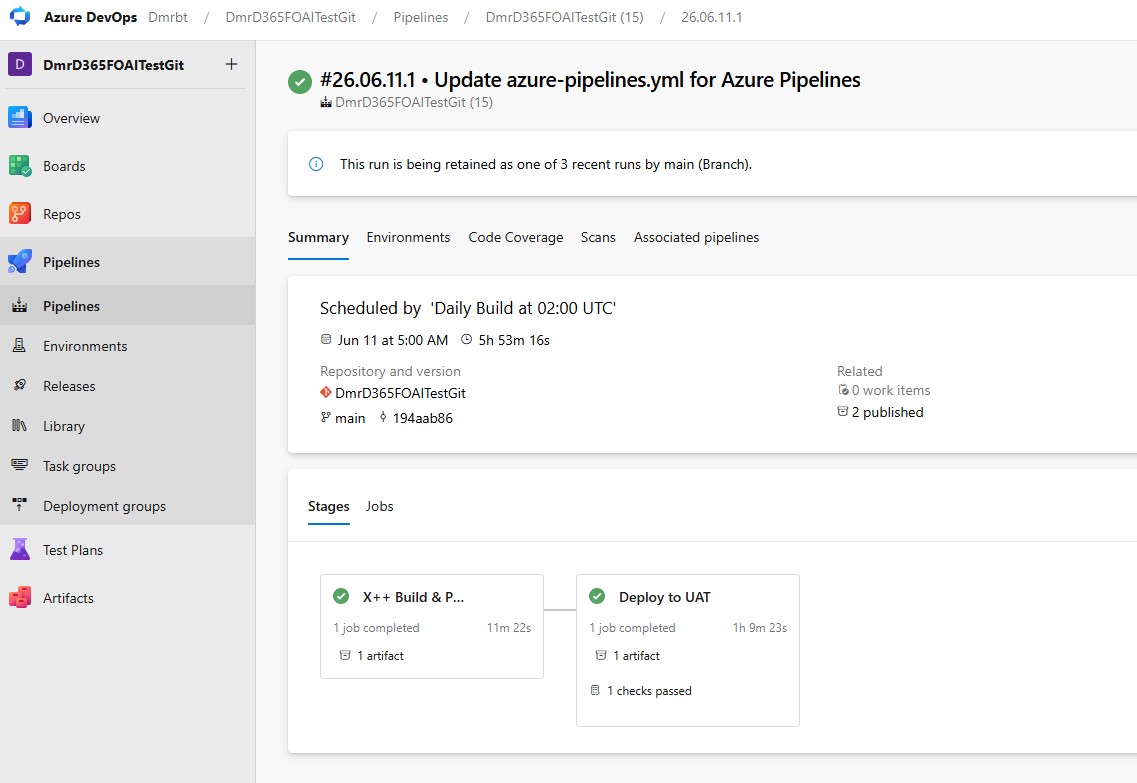
| 7. Artifact | PublishBuildArtifacts@1 | Stores the outputs under a specific build run and makes them available to the release pipeline. |
Unified Package vs. Traditional Deployable Package
| Topic | Traditional deployable package | Power Platform unified package |
|---|---|---|
| Primary use | Traditional LCS-based deployment flows | Power Platform unified environment CI/CD flow |
| X++ output | Contains AOT package binaries | Contains the X++ runtime package |
| Dataverse solution | Requires a separate deployment flow | Can be included in the same package when required |
| Pipeline task | Can be created with XppCreatePackage | XppCreatePackage@3 + CreateCloudPackage |
| Deployment approach | LCS / traditional environment update | PowerPlatformPackageDeploy or pac package deploy |
For new Unified Experience projects, my approach is to treat the unified package as the primary output. If the customer’s landscape still includes traditional LCS-based environments, creating a traditional deployable package from the same build can be useful during the transition. Dataverse managed solutions can also be added to the unified package when required.
Running the Pipeline for the First Time
- Commit the Build/azure-pipelines.yml file to the repository.
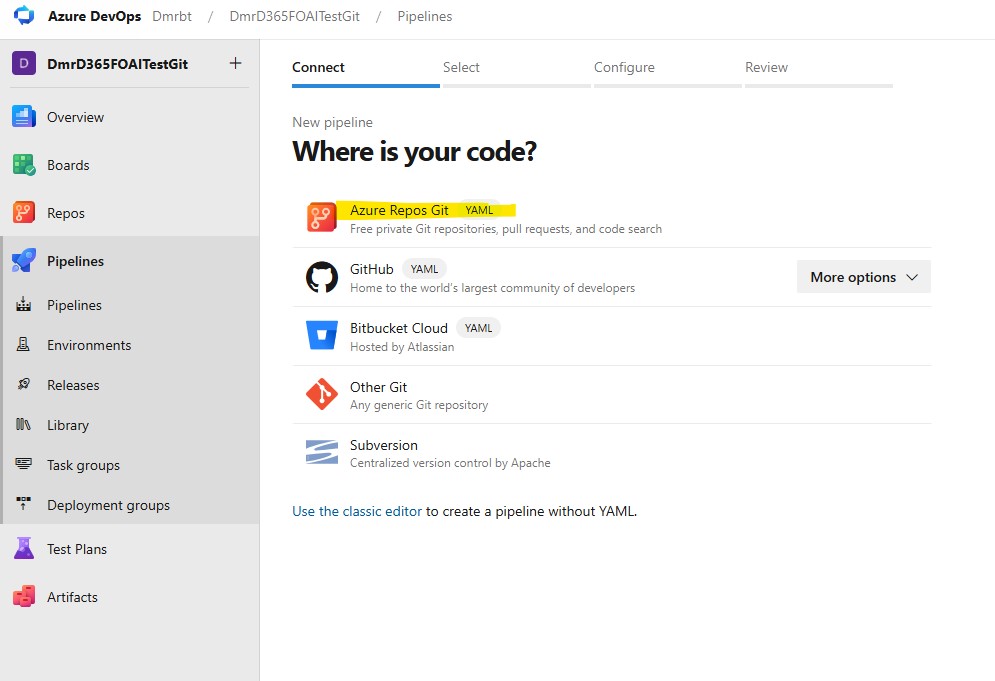
- On the Pipelines → New Pipeline page, select Azure Repos Git and the relevant repository.
- Select Existing Azure Pipelines YAML file and point to Build/azure-pipelines.yml.
- Check the MetadataPath, SolutionPath, PlatformVersion, and ApplicationVersion values, and then run the pipeline manually.
- Verify the NuGet restore and VSBuild logs first, followed by the XppCreatePackage@3 logs.
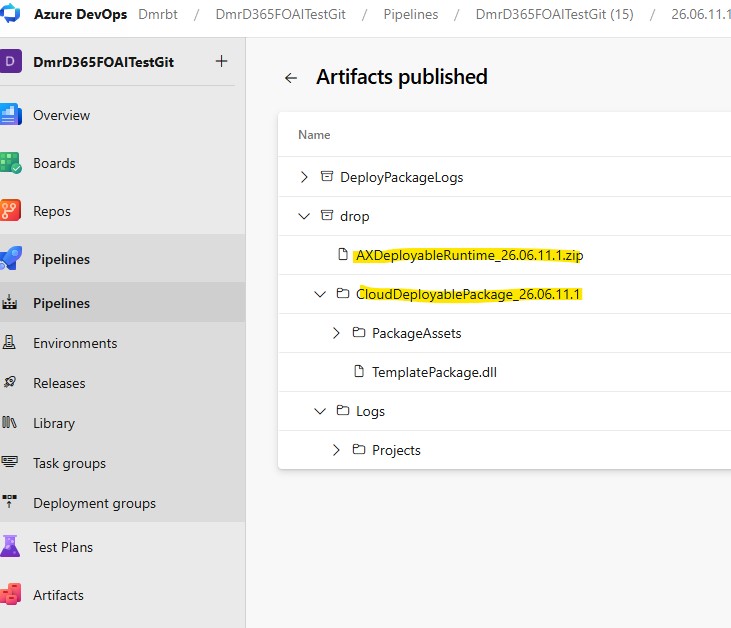
- Under Run Summary → Artifacts, verify the UnifiedPackage output and, if required, LCSPackage.
Branch Trigger or Nightly Build?
When the pipeline is first created, running it manually with trigger: none makes troubleshooting easier. Once the structure is stable, different strategies can be used depending on the project’s needs.
| Approach | When is it appropriate? | Notes |
|---|---|---|
| Pull Request validation | When a compile check is required for every PR | Package creation can remain optional |
| Dev branch trigger | When a shared build is required after every merge into the dev branch | Provides fast feedback |
| Nightly build | When building every commit is expensive for large solutions | Suitable for a daily full build and package creation |
| Main / release trigger | When a package is created for a release candidate | The artifact is connected to the release pipeline |
In large Dynamics 365 projects, creating a full X++ package for every feature commit can be unnecessarily expensive. A more balanced approach is limited validation during the PR stage, controlled builds on the dev branch, and full package creation at night.
Common Errors
| Error / symptom | Probable cause and check |
|---|---|
| NuGet restore 401 | The build service account does not have Reader permission on the FinOpsNuGet feed. |
| References cannot be found | One of the five NuGet packages is missing, the packages.config version is incorrect, or the ReferenceFolder path is invalid. |
| The XppCreatePackage@3 task cannot be found | The Dynamics 365 Finance and Operations Tools extension is not installed or is outdated. |
| No X++ binary package(s) found | The VSBuild output was not generated in the expected Build.BinariesDirectory location, or the .rnrproj file is not building the correct package. |
| fnomoduledefinition.json file not found | CloudPackageOutputLocation or XppToolsPath is incorrect, so the package folder structure was not created. |
| Version mismatch | CloudPackagePlatVersion / CloudPackageAppVersion is not compatible with the restored NuGet packages. |
| Package server error | The NuGet 3.3.0 installation shown in Microsoft’s example is missing from the packaging step. |
| Descriptor / model cannot be found | The Descriptor folder under Metadata was not added to the repository. |
Versioning and Traceability
The pipeline should not only create a package; it should also make the package’s origin visible. Build.BuildNumber, Git commit SHA, branch, platform/application versions, package name, and the pipeline run link should be included in the artifact or release notes.
This lets us trace which commit produced the package running in an environment. Instead of saying, “This code built successfully on Fatih’s computer,” we have a verifiable release record tied to a specific commit and pipeline run.
After a Quality Update
Upload the new Compiler and Build Reference packages to the feed, and align packages.config with the PlatformVersion and ApplicationVersion values in YAML using the same version set. Then verify the full X++ build and package creation with a manual run.
My recommendation: Before scheduling a quality update and a production release for the same day, verify the build pipeline against the new reference set in a separate run. Managing NuGet packages and the environment version together is a fundamental part of ALM discipline in the UDE era.
Practical Summary
With an Azure DevOps pipeline, the controlled commit in Git becomes the source of truth. The compiler and reference set are versioned through NuGet, VSBuild compiles on a clean agent, and XppCreatePackage@3 publishes the output as an artifact.
In my view, the most important benefit of this structure is not merely automation, but reproducibility. We can look back and see which references were used to build a commit and which package was produced.
Next Part
In the next part, I will cover the release/deployment pipeline that moves the UnifiedPackage artifact to Test, UAT, and Production environments. Service connections, workload identity federation, approval mechanisms, and deployment history will be the main topics.
Best regards.
Fatih Demirci
www.fatihdemirci.net



No comments yet.