Connecting Visual Studio to a UDE Environment on Power Platform
Connecting Visual Studio to a UDE Environment on Power Platform
In the previous article of this series, we covered how to prepare the developer machine for UDE by installing Visual Studio 2022 and the required tools.
In this article, we will connect Visual Studio to the developer-enabled UDE environment that we created on Power Platform. In my opinion, this is one of the first steps where the UDE experience really starts to become tangible.
In the classic development VM model, Visual Studio was already available inside the development machine. AOS, metadata, SQL Server, development tools, and most of the supporting components were located on the same machine. With UDE, this structure changes. Visual Studio runs on our local computer, while the Finance & Operations runtime runs in the cloud environment that we created on Power Platform.
For this reason, we need to correctly associate Visual Studio with the right online development environment, use the correct URL, complete the Finance & Operations assets and metadata download process, verify the metadata configuration settings, and make sure that Application Explorer opens properly.
In this article, I will go through this connection process step by step. I will especially focus on topics that can be confusing during the first attempts, such as the Environment URL / Finance and Operations URL distinction, the Connect to Dataverse screen, Auto setup behavior, and the relationship between metadata folders and the local repository structure.
A short preparation before connecting
Before connecting from Visual Studio, it is important to make sure that a few things are ready. If we move to the connection step before completing these checks, it becomes harder to understand whether a later error is caused by permissions, an incorrect URL, a missing extension, or the metadata download process.
It is useful to check the following items before starting:
- The developer-enabled UDE environment should already be created.
- The UDE environment should be in Ready state in Power Platform Admin Center.
- Finance and Operations provisioning should be completed.
- Platform Tools and Provisioning App installation should be completed.
- The Developer Tools option should be enabled.
- Visual Studio 2022 should be installed.
- The Power Platform Tools for Visual Studio extension should be installed.
- The user should have the required permissions in the related Dataverse / Power Platform environment.
- There should be enough free disk space on the local machine for the initial setup and assets download.
For the first setup, it is usually easier not to start with an overly restricted user from a permissions perspective. Later, when moving to the real project structure, roles and security can be made more controlled.
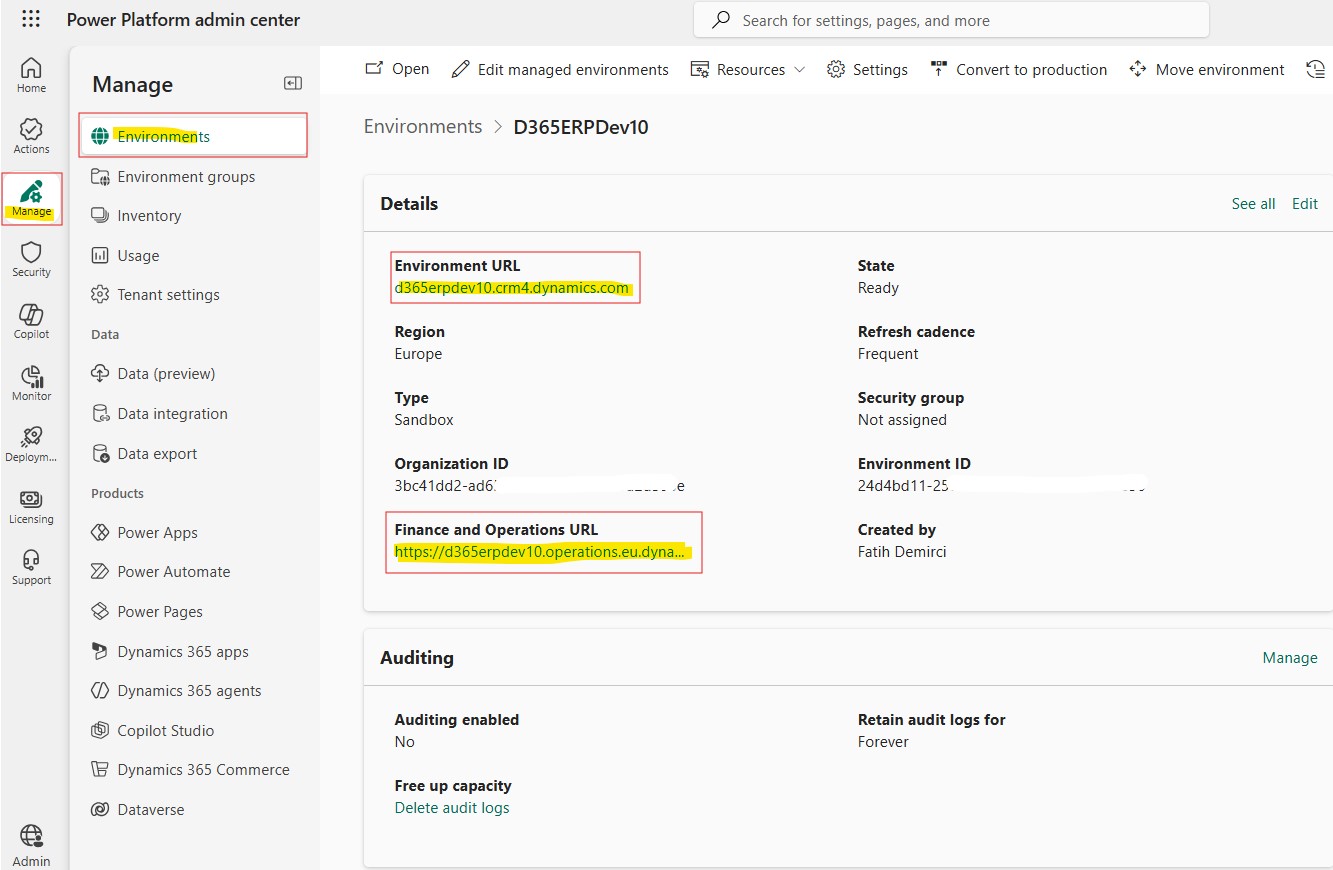
Image-1
Which URL should be used?
One of the most commonly confused topics in the UDE connection process is URL selection. When we open the environment details in Power Platform Admin Center, we usually see two different URLs:
- Environment URL
- Finance and Operations URL
The URL we generally use for the Visual Studio connection is the Environment URL. This is the Power Platform / Dataverse environment URL.
The Finance and Operations URL is the address used to open the Dynamics 365 Finance & Operations application from the browser. In other words, it is the URL we use to access the application user interface.
This distinction is very important. If the Finance and Operations URL is used by mistake, Visual Studio may not find the correct Dataverse environment, the connection may fail, or unexpected authentication / discovery errors may occur.
My practical recommendation is this: during the connection process, keep the PPAC environment details screen open, copy the Environment URL directly from there, and use that address on the Visual Studio connection screen.
Connect to Dataverse from Visual Studio
Now we open Visual Studio 2022. At this stage, we do not need to open any solution. On the Visual Studio start screen, we can continue by selecting Continue without code.
Then we follow this menu path from the top menu:
In some installations, you may also see the Download Dynamics 365 FinOps assets option in the menu. In practice, we can think of the difference between these two options as follows:
- Connect to Dataverse: Connects to the environment and can start the required assets download process if they have not been downloaded before.
- Download Dynamics 365 FinOps assets: Used to explicitly start the Finance & Operations assets download process.
The main purpose here is to connect Visual Studio to the Power Platform environment and start the assets and metadata download process required for Finance & Operations development.
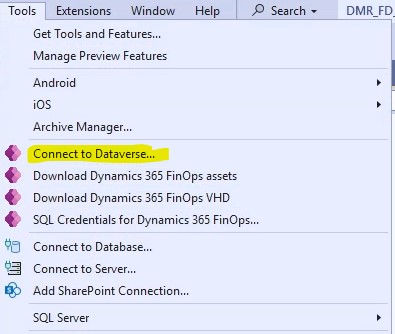
Image-2
Login screen
After selecting Connect to Dataverse, the login screen opens. Here, you should sign in with a user who has access to the UDE environment.
During the initial setup and testing phase, it is important that this user has the required permissions both on the Power Platform / Dataverse side and on the Finance & Operations side. If there are permission gaps, the connection may be established, but issues can still appear later during assets download, metadata configuration, deployment, or debugging steps.
In some tenant scenarios, environments are listed automatically. In other cases, you may need to enter the Environment URL to find the environment. Especially if you are working as a guest user in another tenant, or if the environment does not appear in the list, you may need to check some additional options in the Power Platform Tools settings inside Visual Studio.
In these scenarios, the options under the following menu can become important:
Especially in guest user or cross-tenant scenarios, settings such as Skip Discovery may become relevant. However, for the first UDE attempts, using a directly authorized user within the same tenant usually makes the process much simpler.
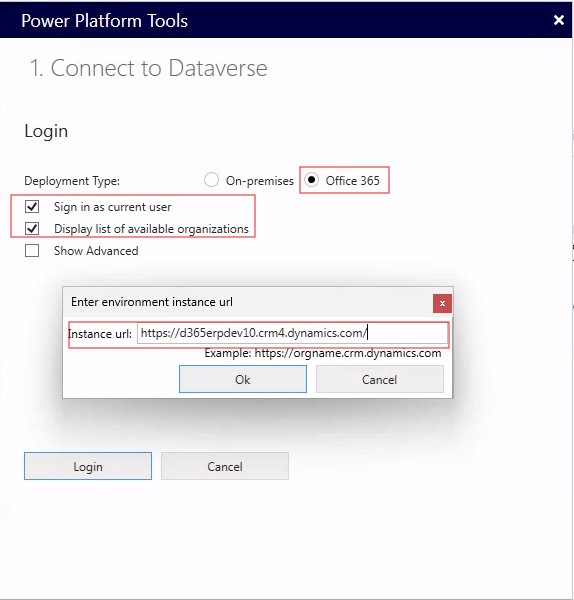
Image-3
Connecting with the Environment URL
After the login step, Visual Studio may display the environment list or directly ask for a URL. At this point, we should use the Environment URL that we copied from Power Platform Admin Center.
I want to emphasize this again: make sure you use the Environment URL instead of the Finance and Operations URL. The Finance and Operations URL is for opening the application web interface. For the Visual Studio connection, the address we need is the Power Platform / Dataverse environment URL.
Instead of typing the URL manually on the connection screen, it is safer to copy and paste it from PPAC. This small habit prevents many mix-ups, especially in teams that work with multiple sandboxes or multiple tenants.
Solution selection
During the connection, Visual Studio may ask you to select a solution. At first glance, this screen can be a bit confusing for Dynamics 365 Finance & Operations developers, because this step did not exist in the classic development VM model.
The solution list shown here is related to the Power Platform / Dataverse side. In initial trials, you can usually continue by selecting the default solution or the relevant environment solution.
The purpose of this step is to complete the Power Platform Tools connection. The Finance & Operations metadata and X++ development side comes into play in the following steps.
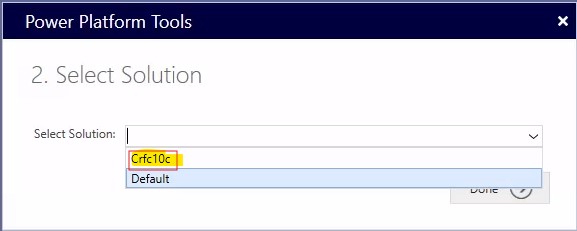
Image-4
Downloading Finance & Operations assets and metadata
After the connection is completed, Visual Studio may prompt you to download the required assets and metadata files for Finance & Operations development. This is one of the most critical steps of the UDE setup.
The downloaded content generally includes the following components:
- Finance & Operations Visual Studio extension
- System metadata
PackagesLocalDirectorycontent- Cross-reference database backup file
- Supporting tools such as Trace Parser
- The infrastructure required for metadata configuration
This process may take some time. The duration can vary depending on internet speed, environment version, computer performance, and disk status. Visual Studio shows progress in the Output window during this process.
By default, the downloaded files are placed under a folder similar to the following path in the user profile:
If Auto setup is enabled, most of the file download, required extension installation, system metadata extraction, and metadata configuration creation steps may proceed automatically. Still, it is very important to follow the Output window during the first setup.
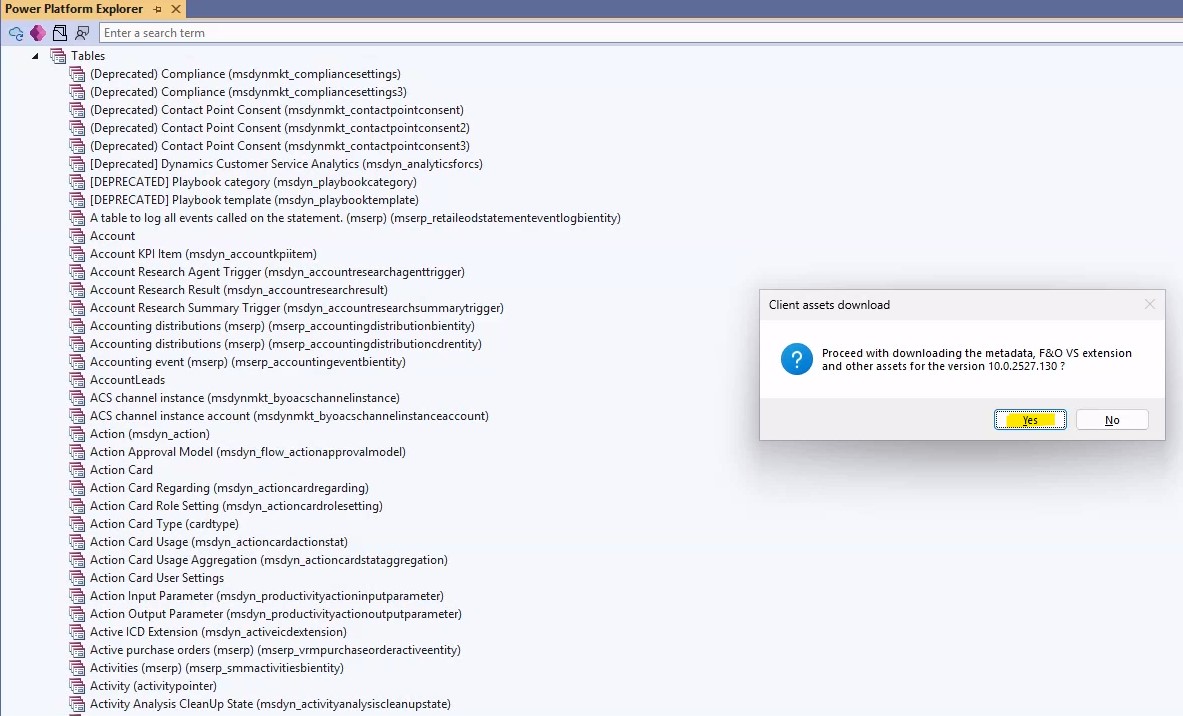
Image-5
Following the Output window
The Visual Studio Output window is very important during this setup process. You can open the Output window from the following menu:
Download, unpack, extension installation, metadata configuration, cross-reference database operations, and error messages can be seen here.
When an error occurs during the first setup, the real clue is often in the Output window. For example, file access permissions, the need to unblock downloaded files, PowerShell execution restrictions, LocalDB connection problems, or metadata extraction issues can appear in this area.
My recommendation is to keep the Output window open until the UDE connection and metadata download process is completed. When the setup finishes, make sure to check whether there is an error or a message requiring user action.
Auto setup and metadata configuration
If Auto setup is enabled on the Power Platform Tools side, the system tries to perform many steps automatically. This makes the process significantly easier, especially during the first setup.
The Auto setup process can generally perform the following steps automatically:
- Finance & Operations Visual Studio extension installation
- Metadata file download
- Preparation of the
PackagesLocalDirectorycontent - Metadata configuration creation
- Cross-reference database preparation
However, not every setup is completed automatically and without issues. For this reason, it is important to verify the metadata configuration settings from Visual Studio.
To do this, go to the following menu:
On this screen, you can see the active metadata configuration. If the Configure Metadata menu does not appear, you may need to restart Visual Studio, check whether the Finance & Operations extension installation has completed, or look at the Infolog screen under the Dynamics 365 menu.
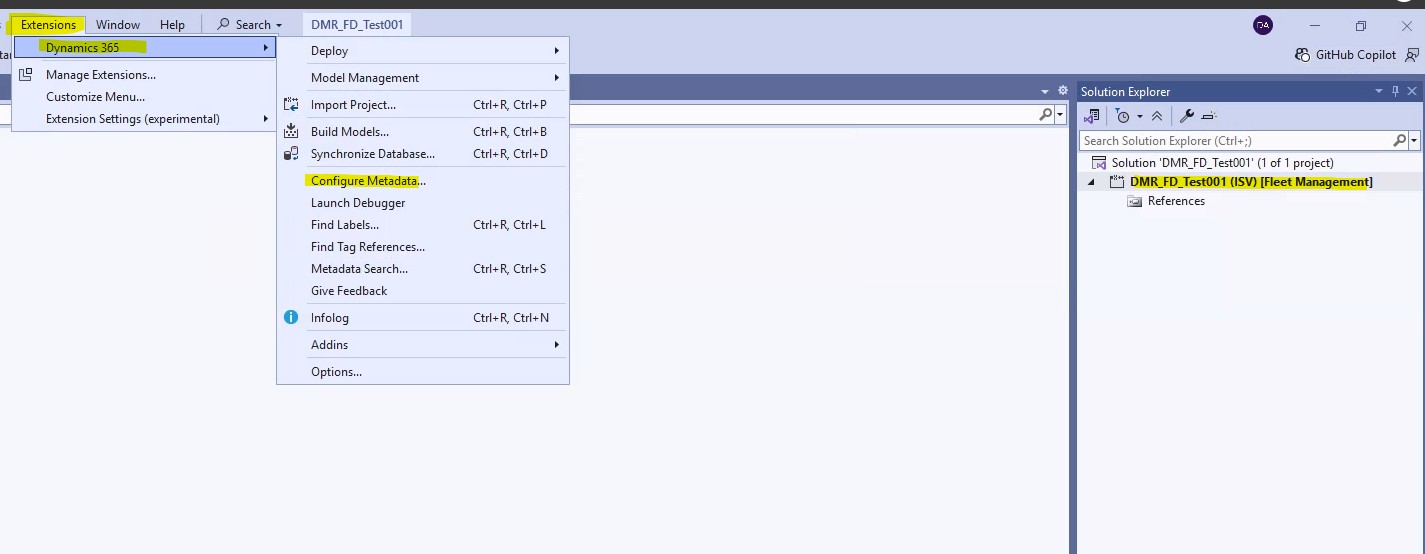
Image-6
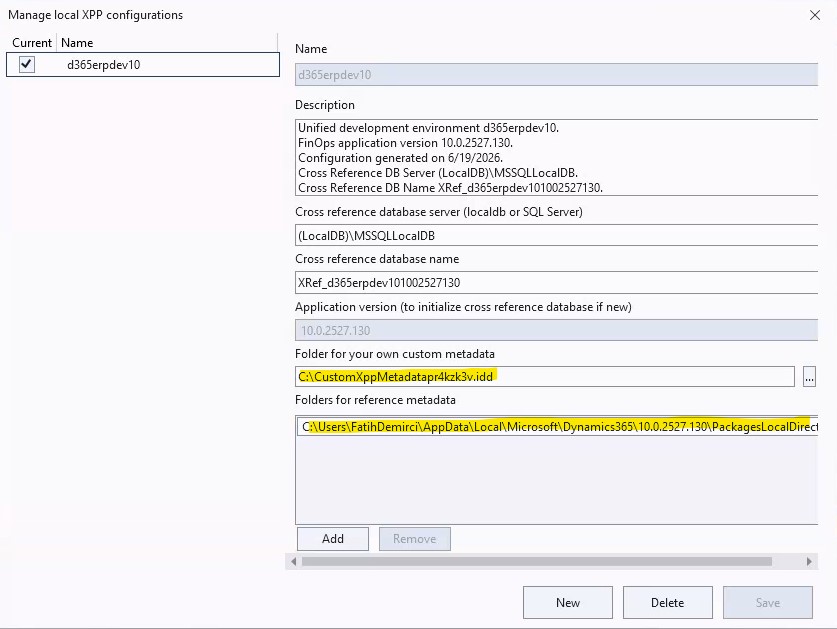
Image-7
Metadata folders and the local repository relationship
With UDE, the classic PackagesLocalDirectory-centered way of thinking changes a little. In the classic development VM model, all metadata was usually located on a single machine under the package folders we were used to. In the UDE model, the distinction between system metadata, reference metadata, and custom metadata becomes more important.
The developer can keep their own developments inside a local repository folder. This structure makes Git usage more natural. If we are going to use an existing Azure DevOps or Git repository, the custom metadata folder should point to the relevant folder inside the repository.
For example, a structure like the following can be preferred:
Or, for a simpler trial environment:
The important point here is that the Folder for your own custom metadata field in the Visual Studio metadata configuration should point to the correct folder. If a new model will be created, defining this folder structure correctly from the beginning makes future Git, branch, and pipeline processes much easier.
On the reference metadata side, the downloaded and extracted system metadata folders are used. These folders are usually tied to the application version. When the application and platform version of the UDE environment changes, the Visual Studio extension and metadata configuration should also be aligned with the correct version.
Checking Application Explorer
After the metadata download and configuration are completed, Application Explorer should be opened. In Visual Studio, you can access the Application Explorer window from the following menu:
If Application Explorer opens and AOT objects are visible, the metadata side is mostly prepared correctly.
You may need to wait a little during the first opening. Since the amount of metadata is large, loading Application Explorer can take some time. At this point, instead of expecting results within a few seconds, it is better to follow the Output window and the Visual Studio status bar.
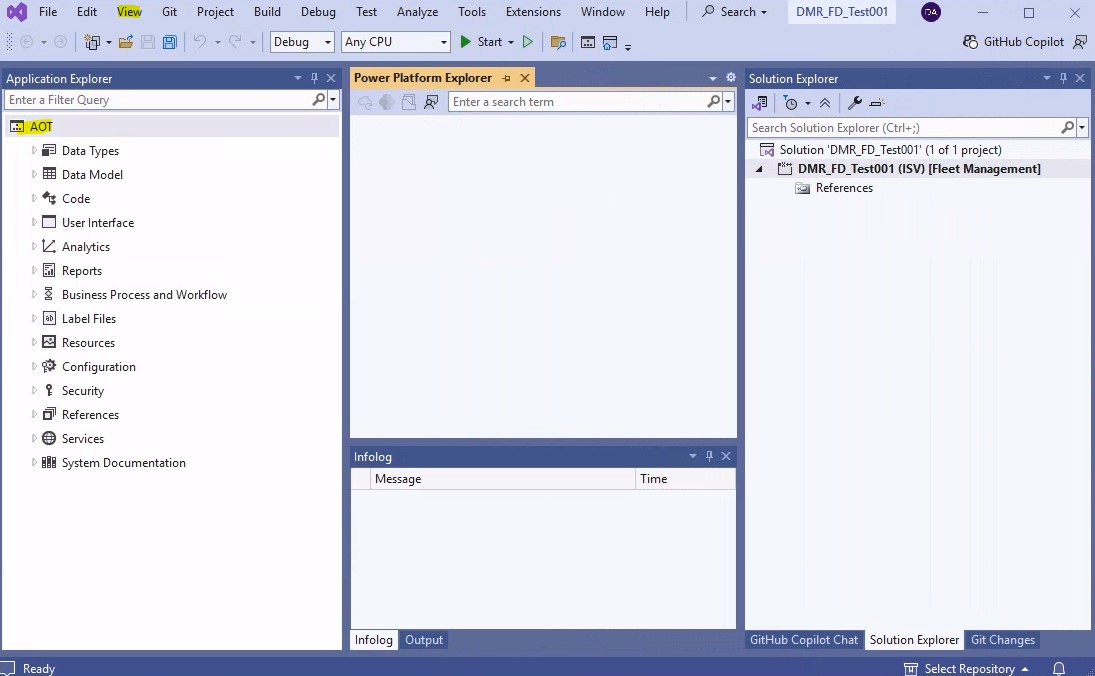
Image-8
Restarting Visual Studio
After the initial setup and metadata download process, it is often useful to close and reopen Visual Studio. Some extension and metadata settings may not fully settle immediately after the first installation.
After restarting Visual Studio, connecting to Dataverse again is usually faster because the assets have already been downloaded and prepared locally.
My practical verification sequence is as follows:
- Make the first connection.
- Complete the assets and metadata download process.
- Check whether there are any errors in the Output window.
- Close and reopen Visual Studio.
- Run Connect to Dataverse again.
- Check the active configuration information in the Configure Metadata screen.
- Open Application Explorer and verify that AOT objects are loaded.
These steps provide a good way to confirm that the first setup has been completed successfully.
Post-connection checklist
After the Visual Studio UDE connection is completed, the following checks can be performed:
- Can Visual Studio connect to the UDE environment?
- Was the correct Environment URL used?
- Was the Finance and Operations URL accidentally used?
- Was the assets download completed?
- Are there any errors or messages requiring user action in the Output window?
- Is the Finance & Operations Visual Studio extension installed?
- Does the Configure Metadata screen open?
- Is the active metadata configuration correct?
- Does the custom metadata folder point to the correct local folder?
- Does the reference metadata folder point to the correct system metadata folder?
- Does Application Explorer open?
- Are AOT objects visible?
- Can Visual Studio reconnect after restarting?
This checklist is especially useful during the first UDE trials.
Common mistakes
Trying to connect with the Finance and Operations URL
The Environment URL should be used for the Visual Studio connection. The Finance and Operations URL is for opening the application user interface.
Looking for the connection option before installing the Power Platform Tools extension
If the Connect to Dataverse option is not visible, the Power Platform Tools for Visual Studio extension installation should be checked.
Signing in with a user who does not have sufficient permissions
If the user does not have access to the UDE environment and the required roles, errors can occur during the connection or metadata download phase.
Trying to open Application Explorer before metadata download is completed
Application Explorer may not load properly before the metadata download and extraction processes are completed. Waiting during the first opening is normal.
Not checking the Output window
Most setup errors appear in the Output window. Proceeding without following this window makes troubleshooting harder.
Setting the custom metadata folder incorrectly
If you will work with a repository, the custom metadata folder should point to the correct local repository folder. Otherwise, the model and source control structure can become confusing from the very beginning.
Mixing multiple UDE environments in the same Visual Studio instance
A single Visual Studio instance works with only one active metadata configuration and one connection at a time. When working with different UDE environments, it is necessary to check which environment is connected and which configuration is active.
Closing
In this article, we covered the steps for connecting Visual Studio to the UDE environment that we created on Power Platform.
In the UDE model, Visual Studio runs on the local computer while the Finance & Operations runtime runs in the cloud. For this reason, connecting with the correct Environment URL, downloading the required assets and metadata files, verifying metadata configuration settings, and confirming that Application Explorer loads correctly are critical steps.
Once these steps are completed, we are much closer to actually developing. In the next stage, we can move on to topics such as creating a new model, pulling metadata from an existing Git repository, developing a simple X++ object, building it, and deploying the model to the online UDE environment.
I think the real difference of UDE becomes much clearer from this point onward. The code is written and built on the local computer, while execution, deployment, and testing take place in the Finance & Operations environment hosted on Power Platform. Once we understand this separation properly, we can build Git, pipeline, and modern ALM processes on top of this structure in a much healthier way.




No comments yet.